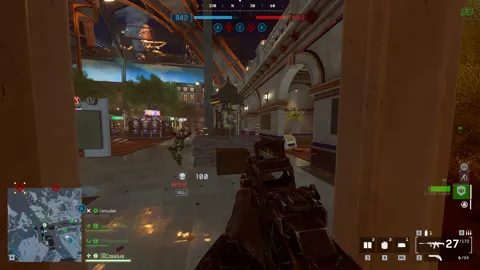
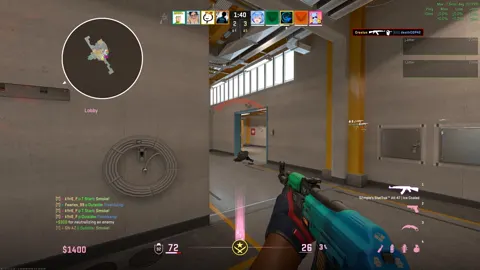
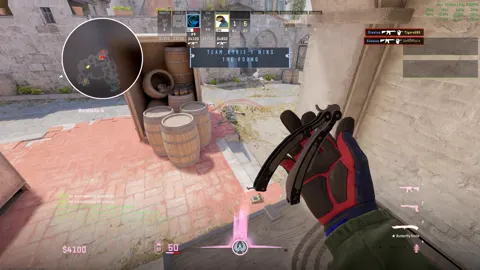
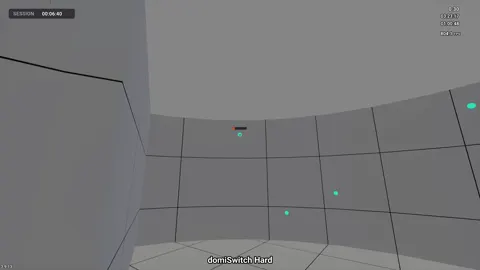
Rusty Clips records your games and saves kills, multi-kills, aces, round wins and highscores as clips by itself. One clip per fight, waiting in your library when the match is over.
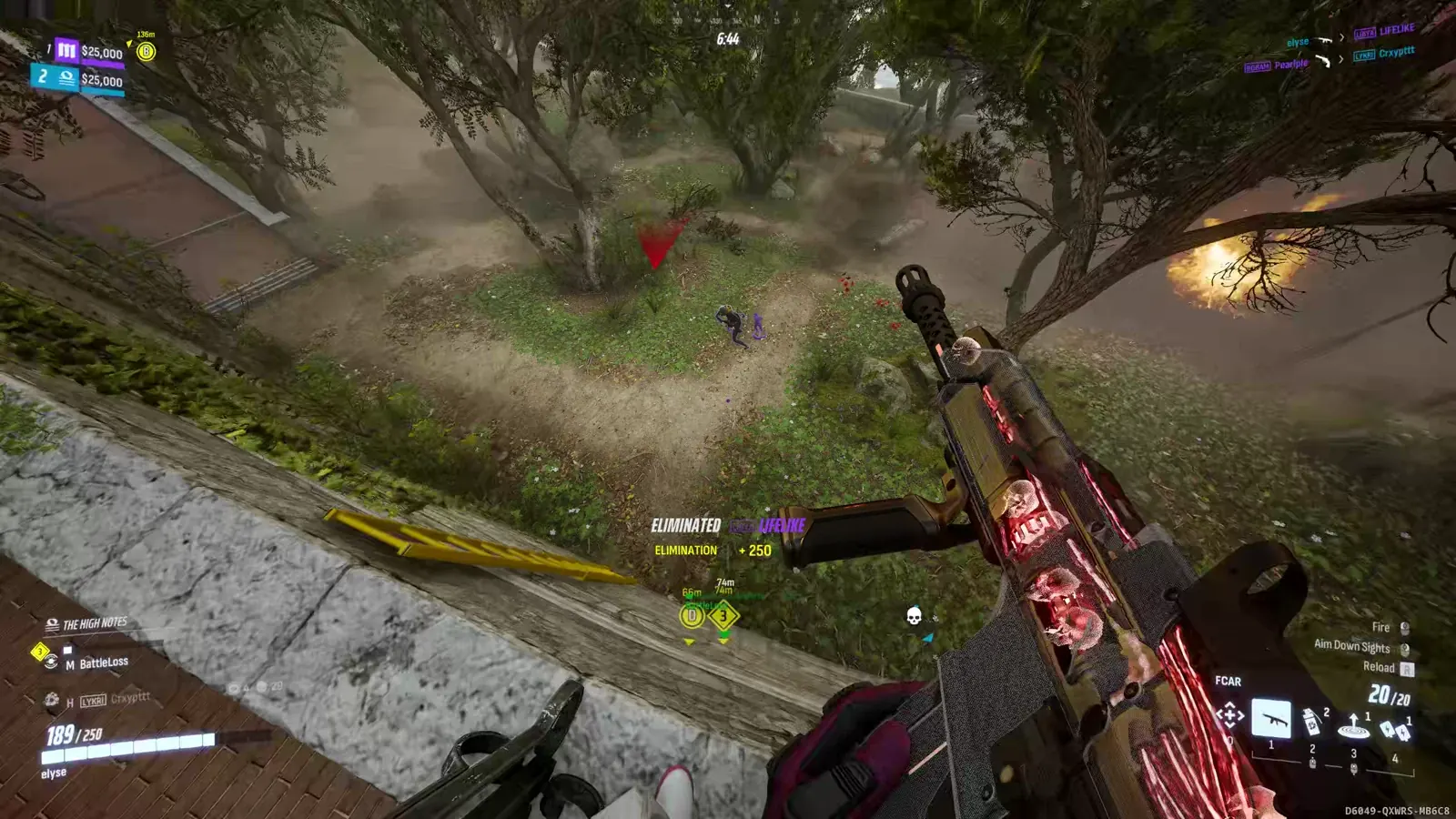
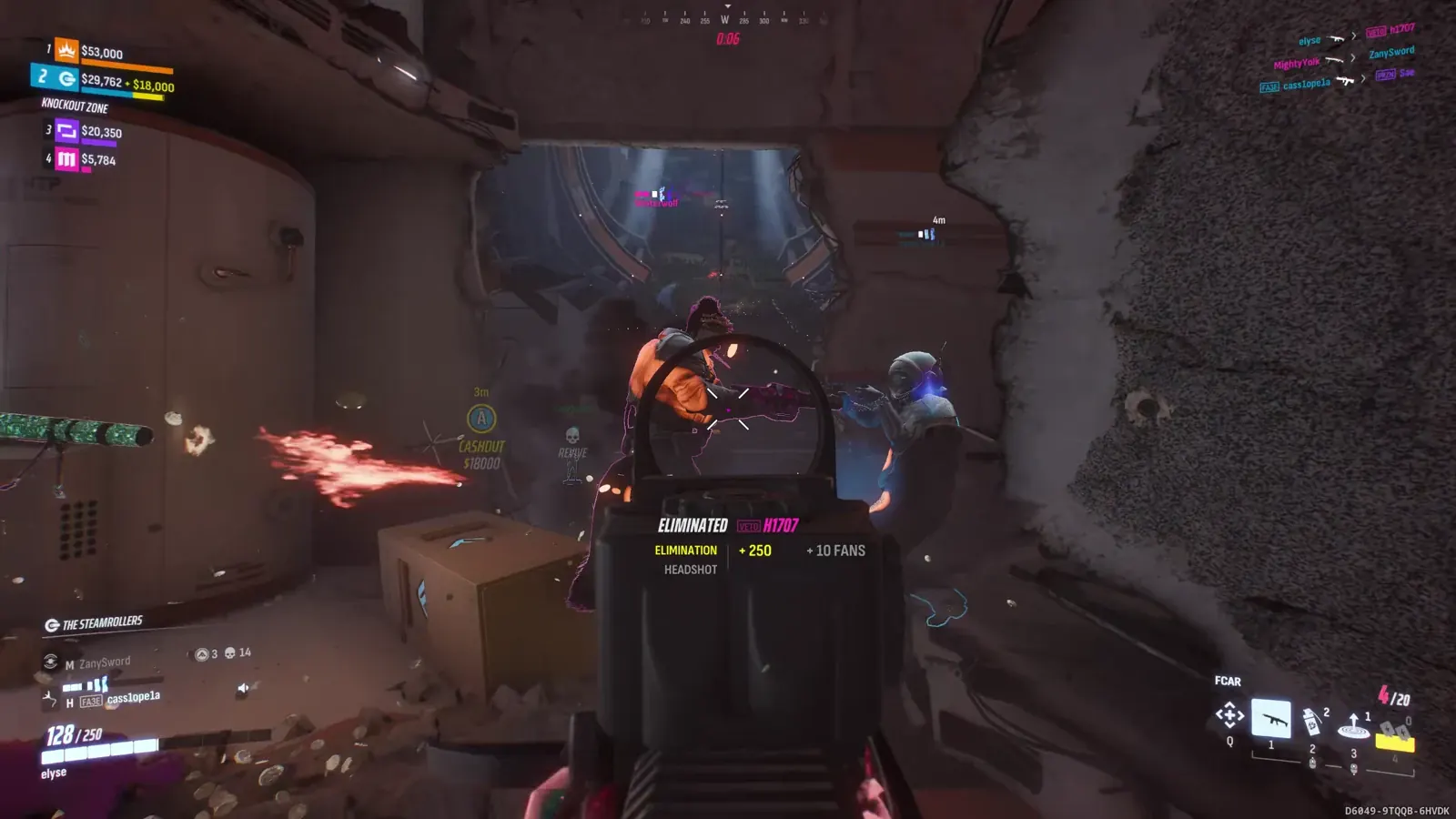
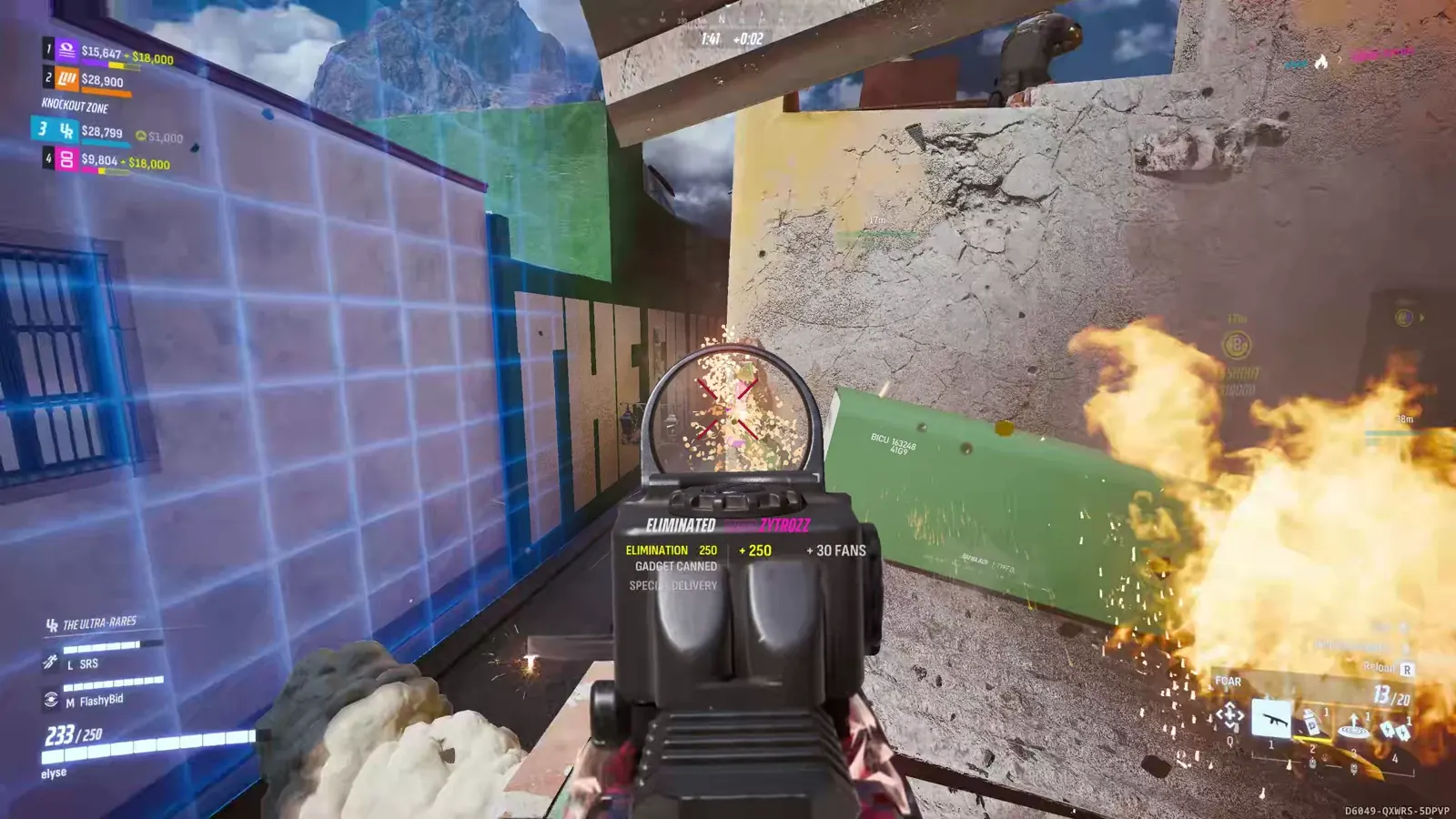
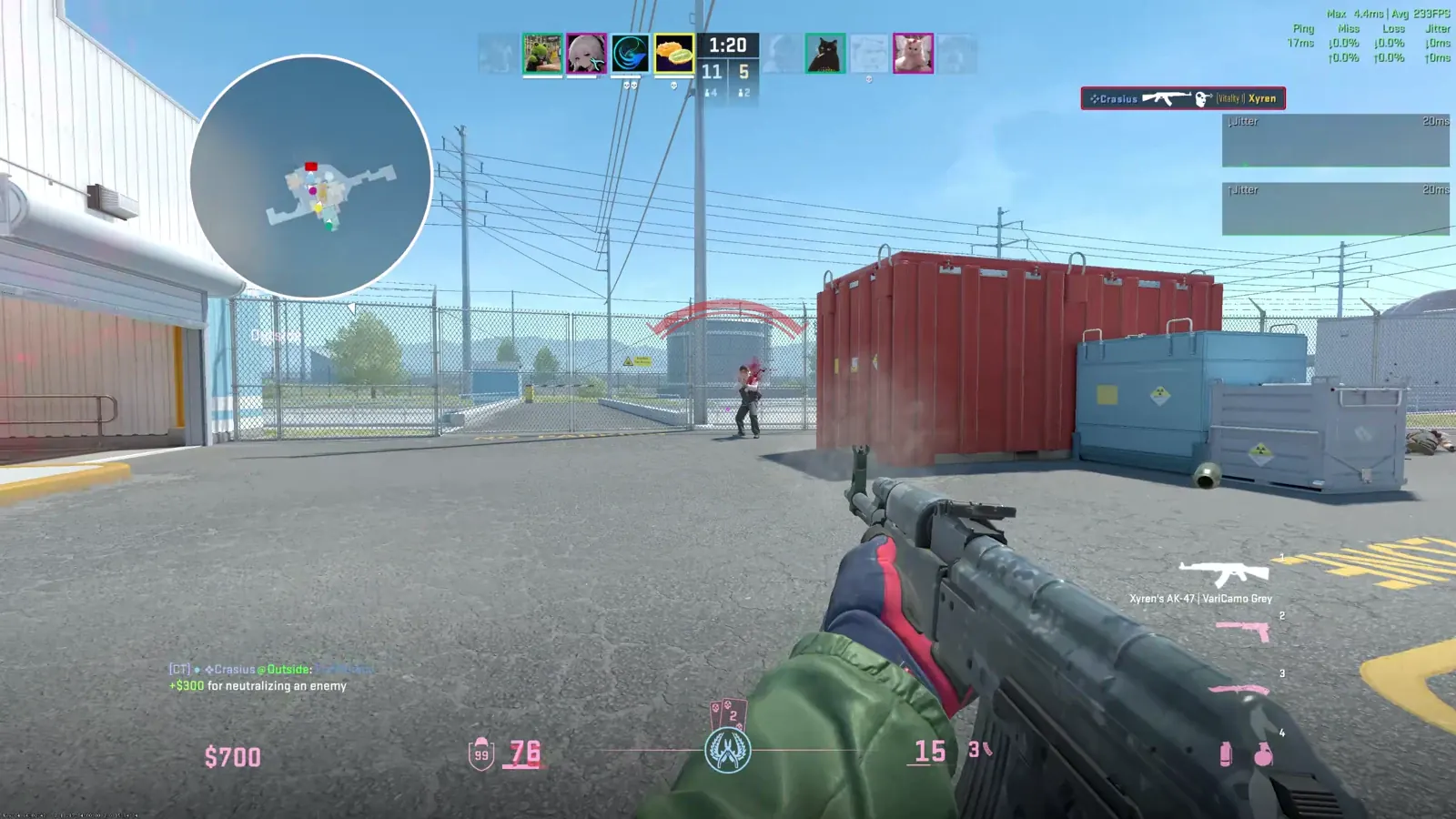
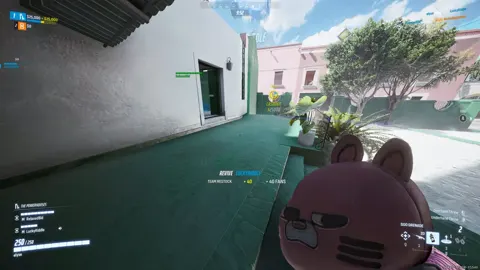
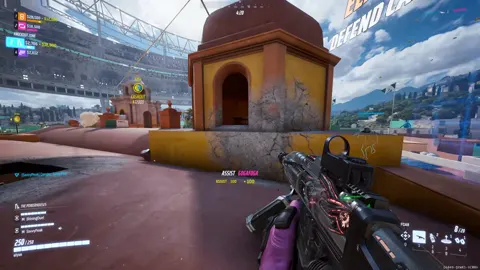
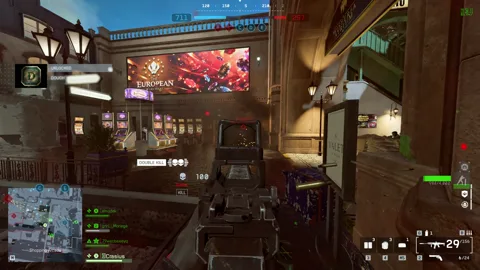
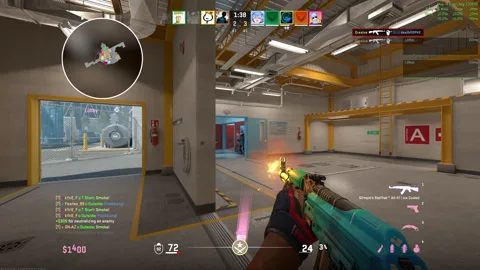
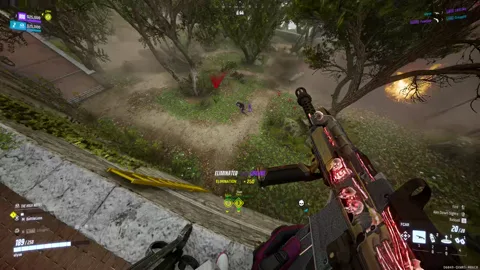
Three games, three fights, three clips. The footage is a real match; each kill on screen adds to the fight's clip in Today, named after what happened.
How a fight becomes a clip.
You keep playing. Rusty Clips notices the kill, waits for the fight to end and saves one clip with every moment marked on its timeline.
It sees the moment
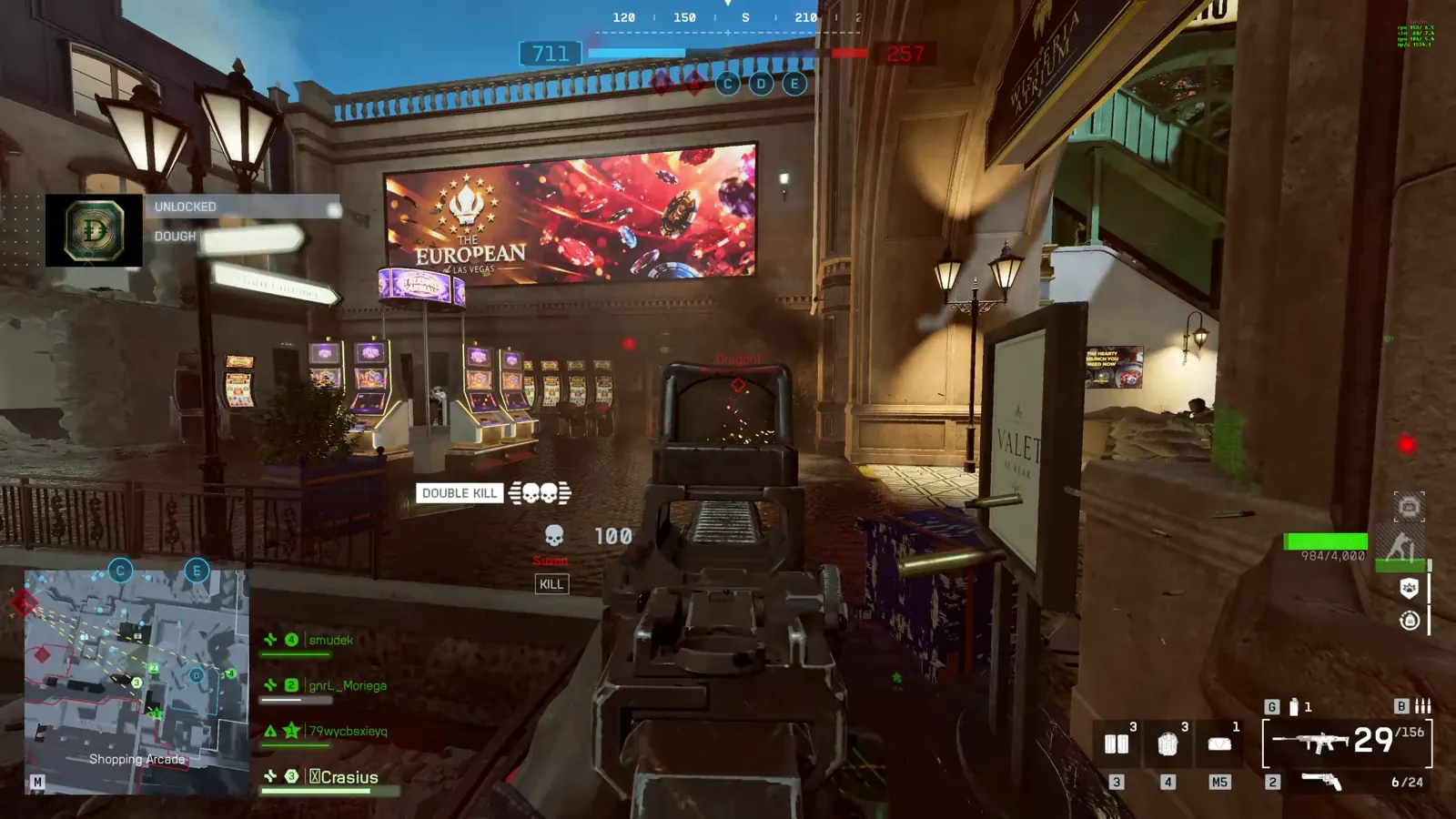
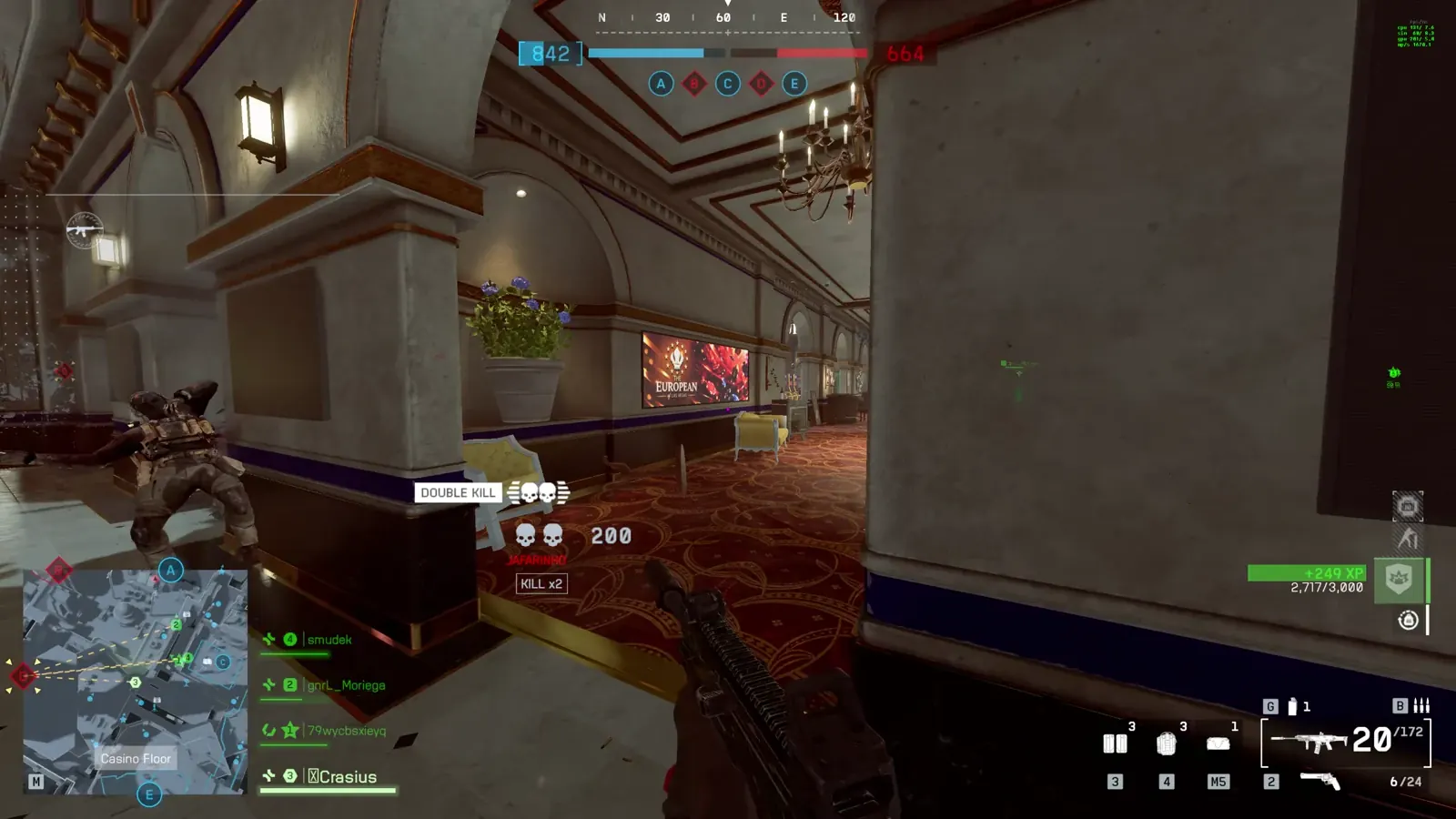
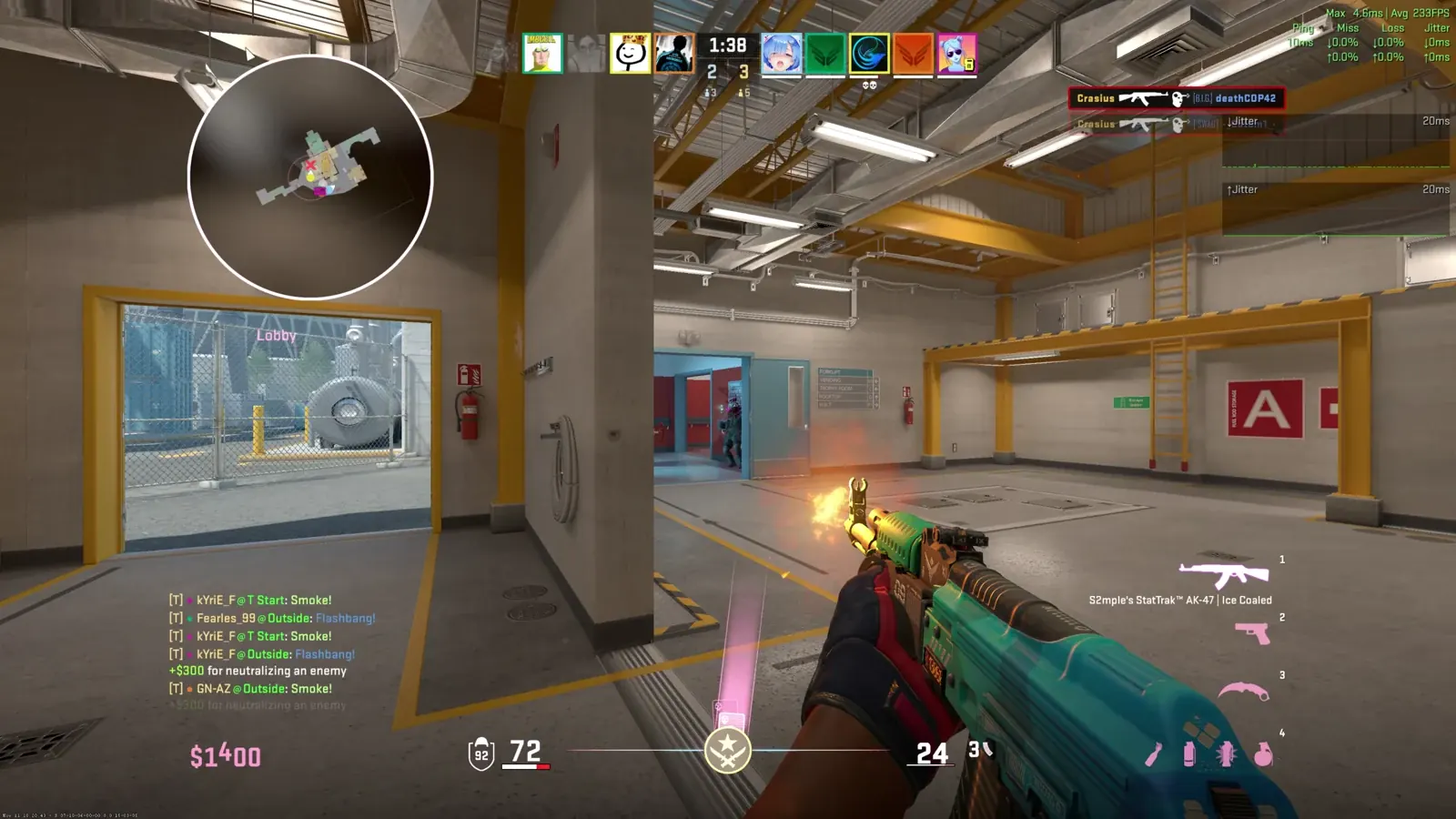
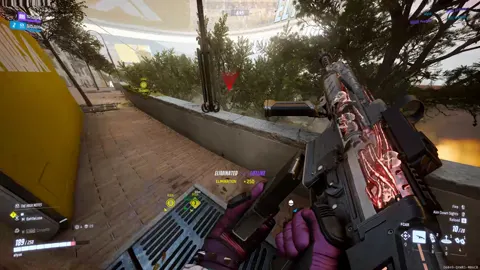
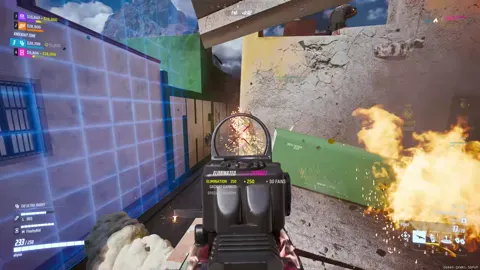
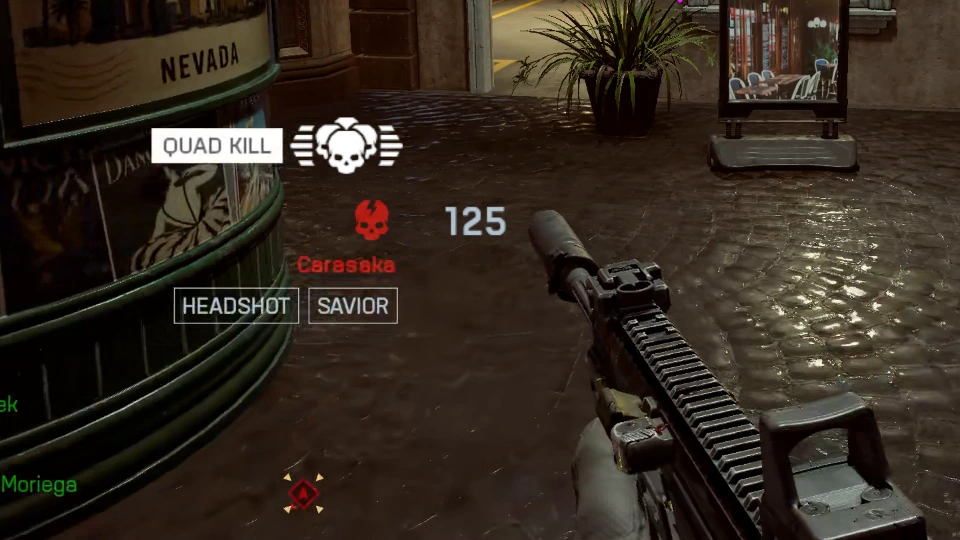
Counter-Strike 2 tells Rusty Clips the moment it happens. In other games Rusty Clips sees the kill on your screen, or the new highscore when the run ends.
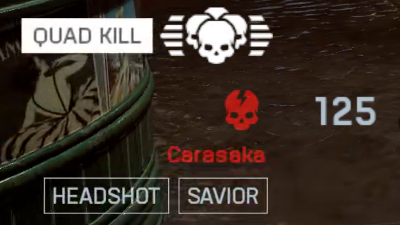
Battlefield 6
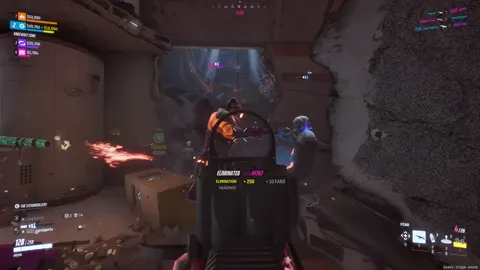
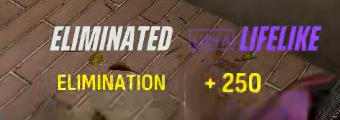
THE FINALS
Counter-Strike 2
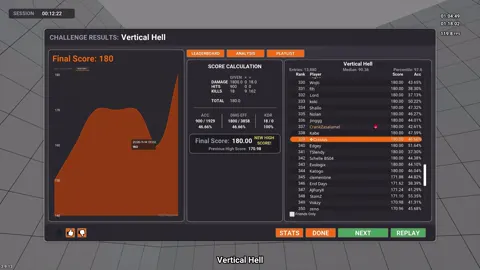
KovaaK's
Your moments, as the game shows them. Cut from the owner's own recordings.
It keeps the fight together
A whole fight becomes one clip, from the first kill to the last, with the build-up and the finish included.
KillKillKill
3 kills in one clip
Clip saved
One fight, one clip. Three eliminations in THE FINALS become one clip named “3 kills”, each kill marked.
It lands in your library
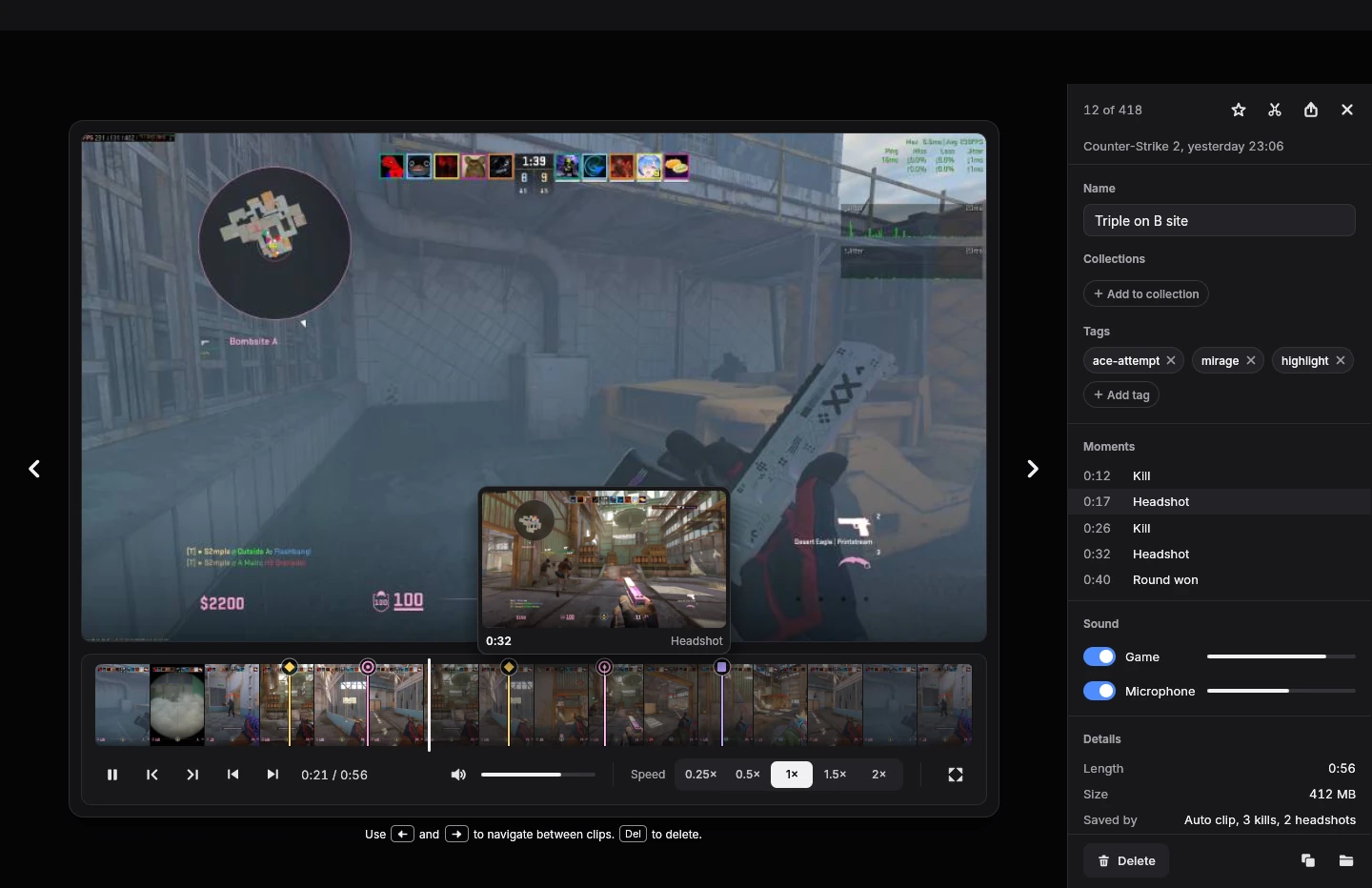
Open the clip and every moment is on the timeline and in the list beside it. Hover a clip in your library and it plays its moments for you.
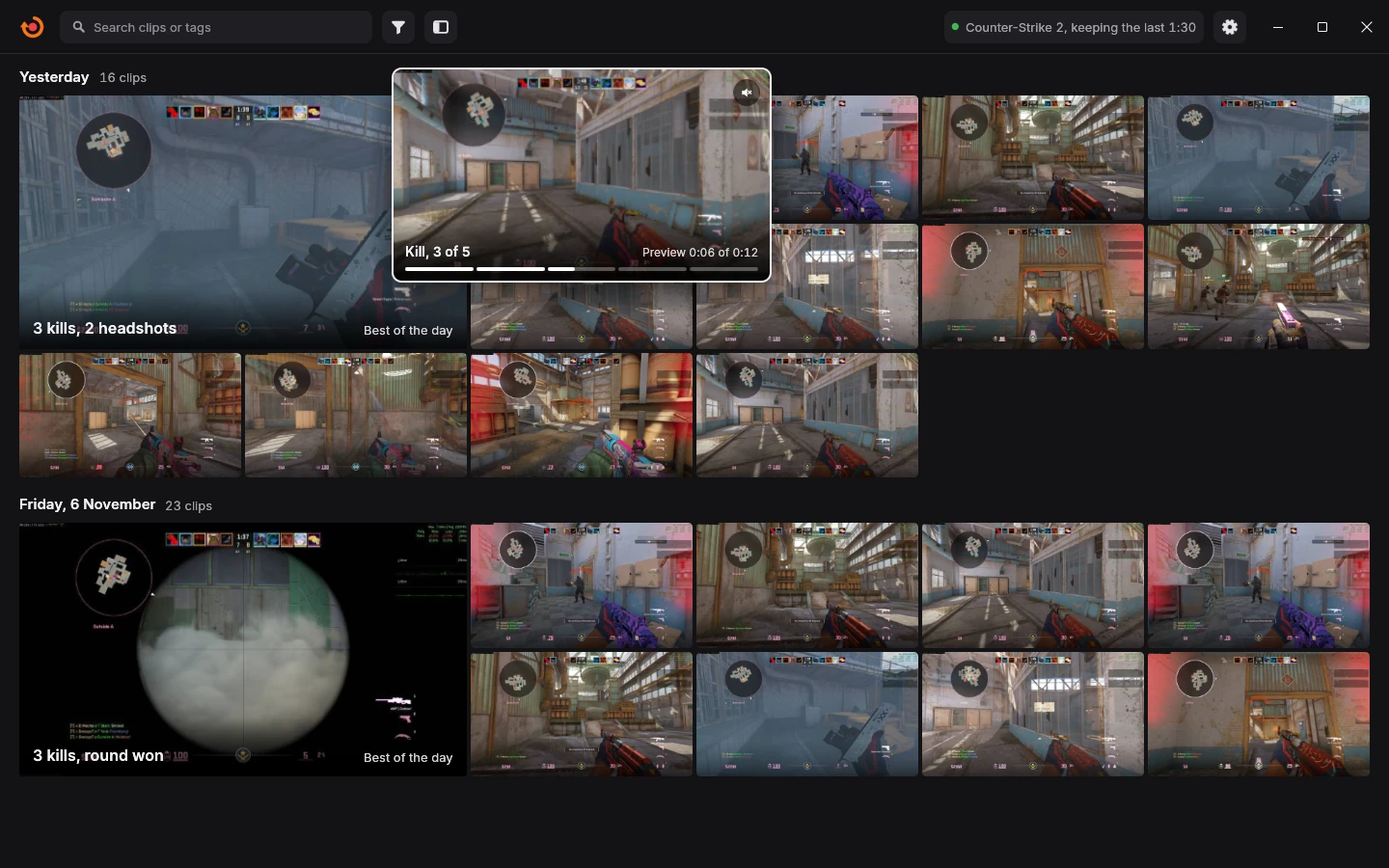
Every moment, one click away. Below it, the hover preview walking through a clip's kills.
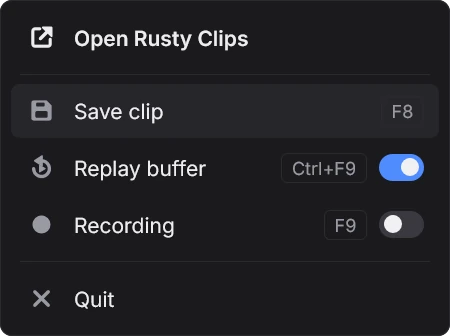
Prefer to clip by hand? Press F8 and the last moments are saved, in every game.
Every fight you played, ready at a glance.
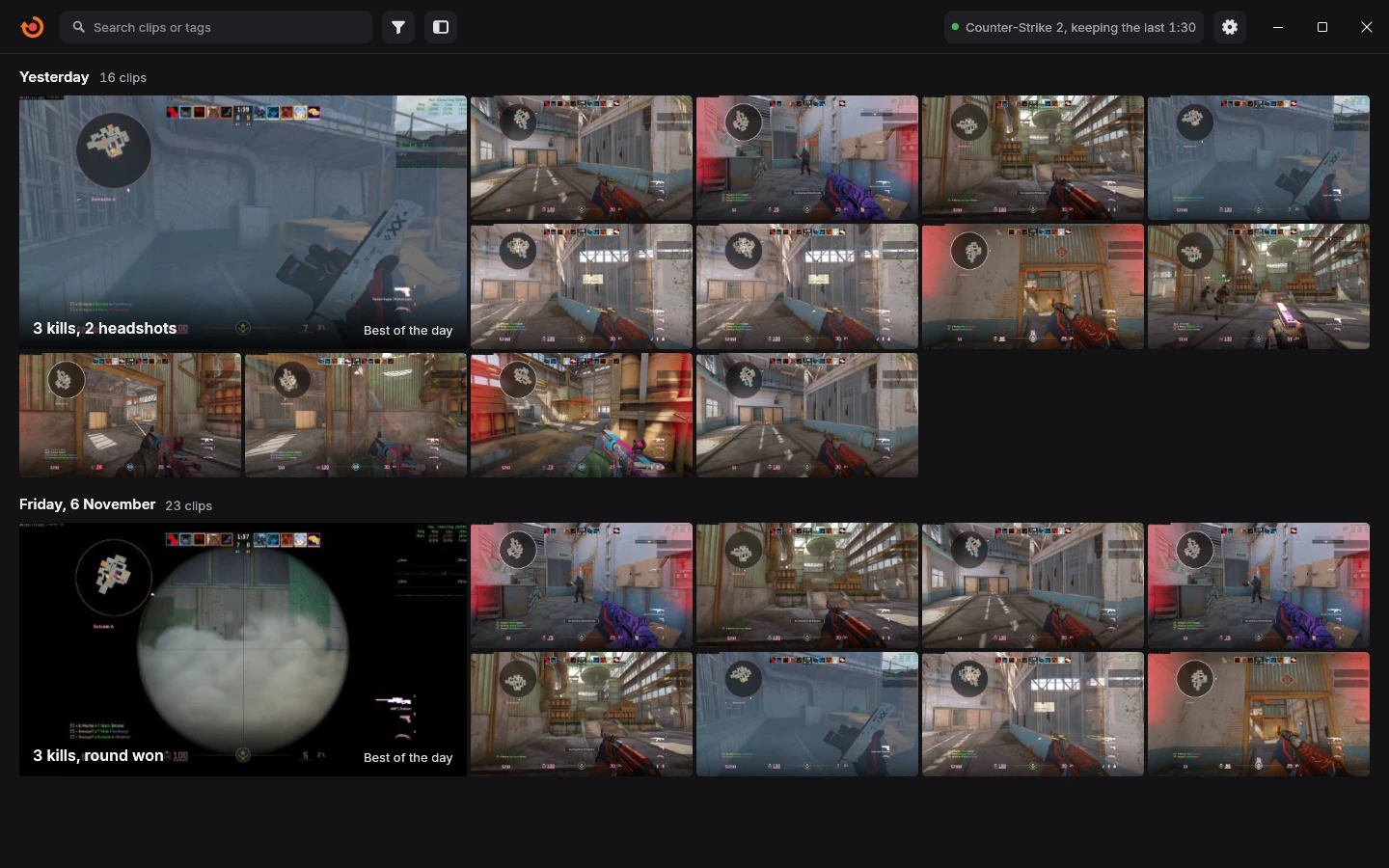
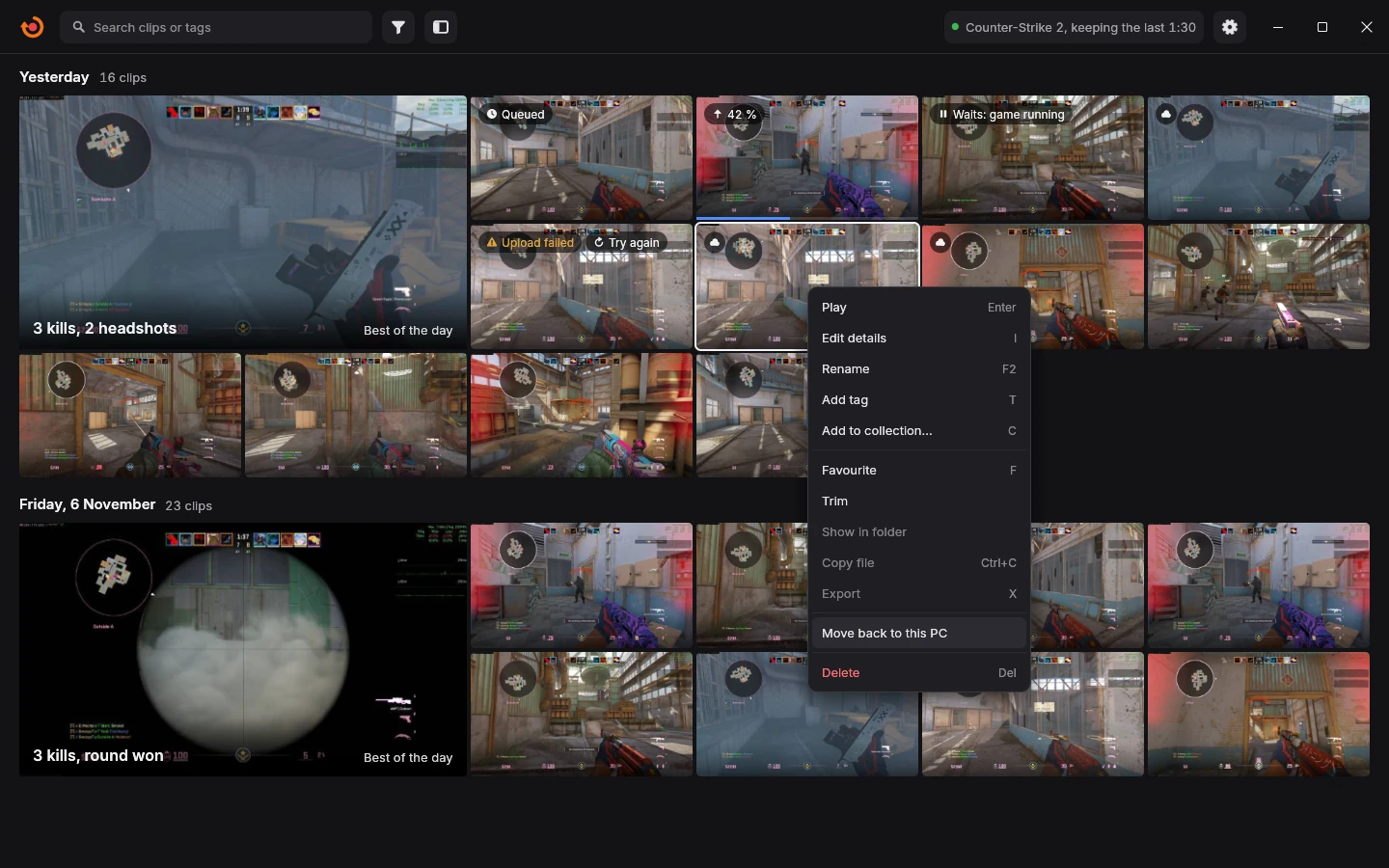
Your clips wait in one place, sorted by the day you played, with the best of each day up front. Rest the mouse on a clip and it plays its best moments right there, one after another.
Monday, 16 November 6 clips
8 kills, 2 headshotsBest of the day
5 kills
4 headshots
2 headshots, round won
2 kills
domiSwitch Hard - 4330
Saturday, 14 November 2 clips
Vertical Hell - 180Best of the day
Vertical Hell - 150
Wednesday, 11 November 6 clips
6 killsBest of the day
6 kills, assist
4 kills, 2 assists
3 headshots
4 kills, revive
2 kills, 2 assists
The owner's real clips. Hover or tap any moving clip to watch its moments.
Show them how you did it.
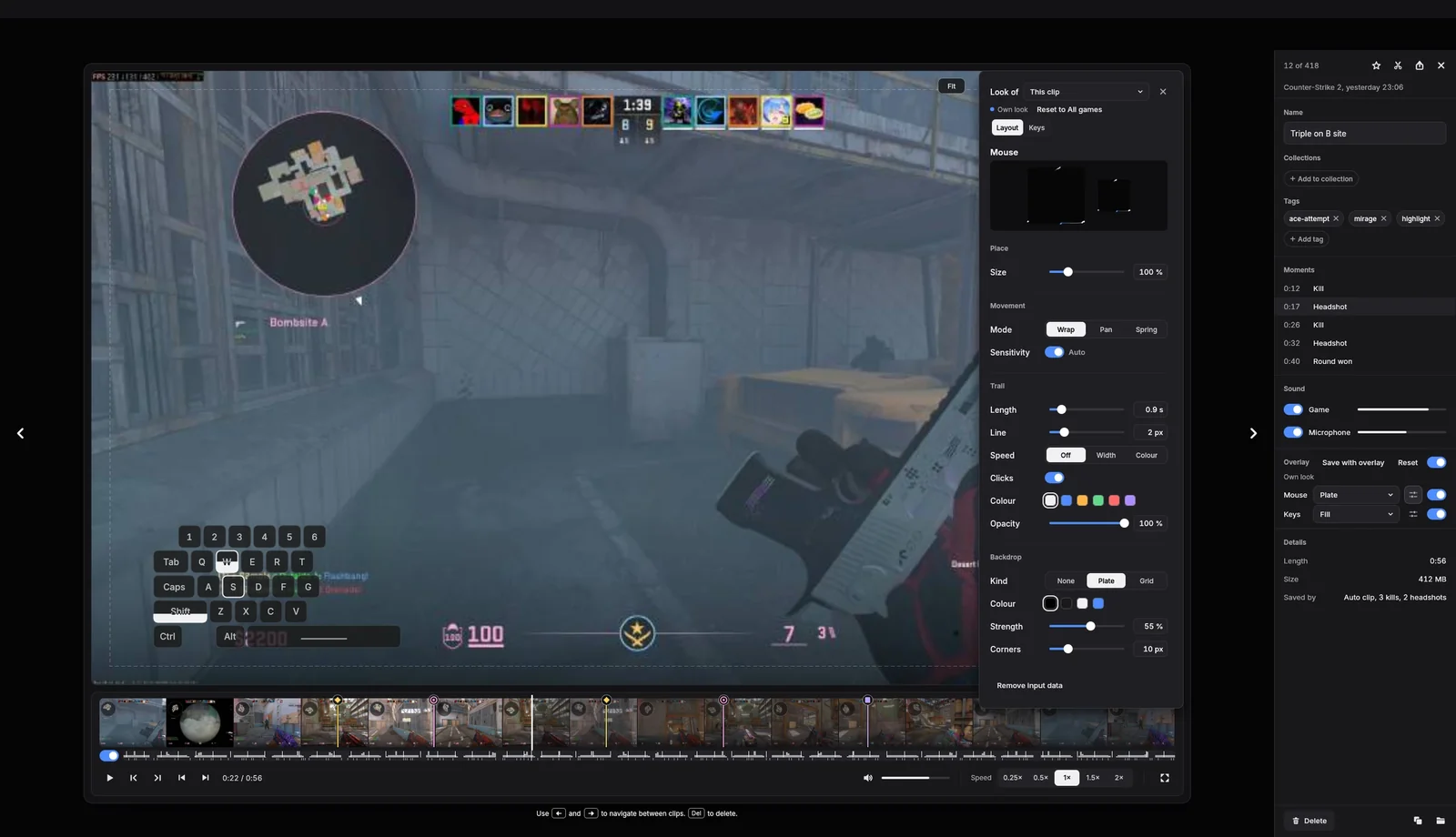
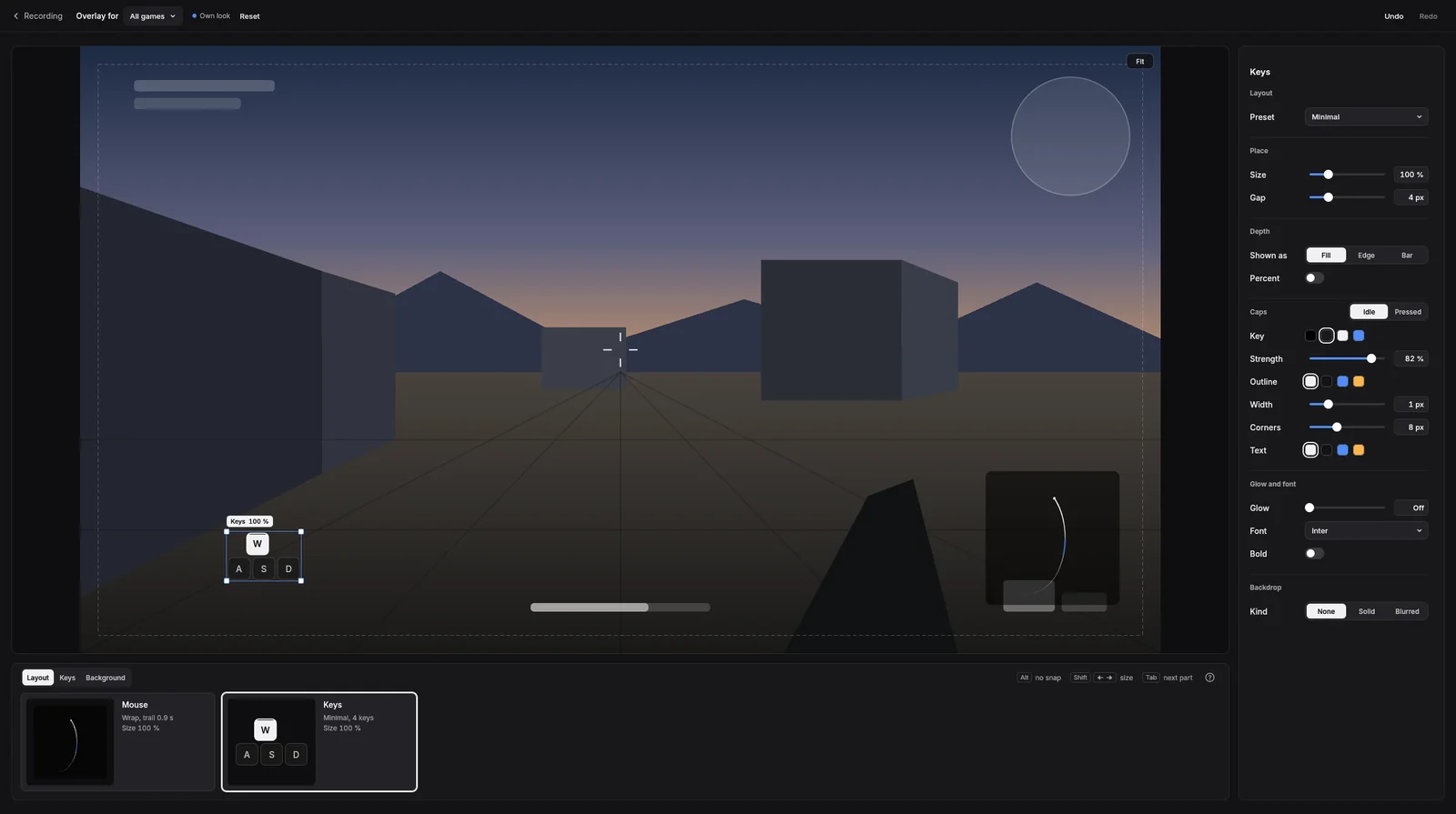
Your clip can show your mouse and the keys you pressed, so everyone sees the flick, the strafe and the spray control. Turn it on for any clip afterwards, and place and style it the way you like.
Close-up
Recorded while you play, shown when you want. Your keys and mouse sit beside the clip, so you can switch them on for any clip, any time.
Right in the Viewer. Switch it on while you watch and change its look for this one clip.
Place it on a big stage. Drag the keys and the mouse where they belong, with lines that help you line them up.
Every flick on view.
A mouse trail that draws each flick and every bit of tracking.
Keys that show the press.
See every strafe and crouch, and on keyboards that measure it, how far each key went down.
On for any clip, afterwards.
Nothing is baked in while you play, so every clip can have it or go without.
Your look.
Colours, outline, corners and size, set once for all games, for one game or for one clip.
Wherever you want it.
Put the keys and the mouse anywhere on the picture, big or small.
In the video you share.
Export the clip and your keys and mouse are part of the video.
Only your game keys.
It keeps the keys you play with, only while the game is in front, never what you type.
Made for each game.
Ten games clip your best moments by themselves, each with the moments that matter in it: aces in Counter-Strike 2, revives in THE FINALS, a new highscore in KovaaK's. You choose which ones become clips.
What it clips.
Kills, headshots, one-taps, multi-kills up to an ace, round wins and match wins.
How it knows.
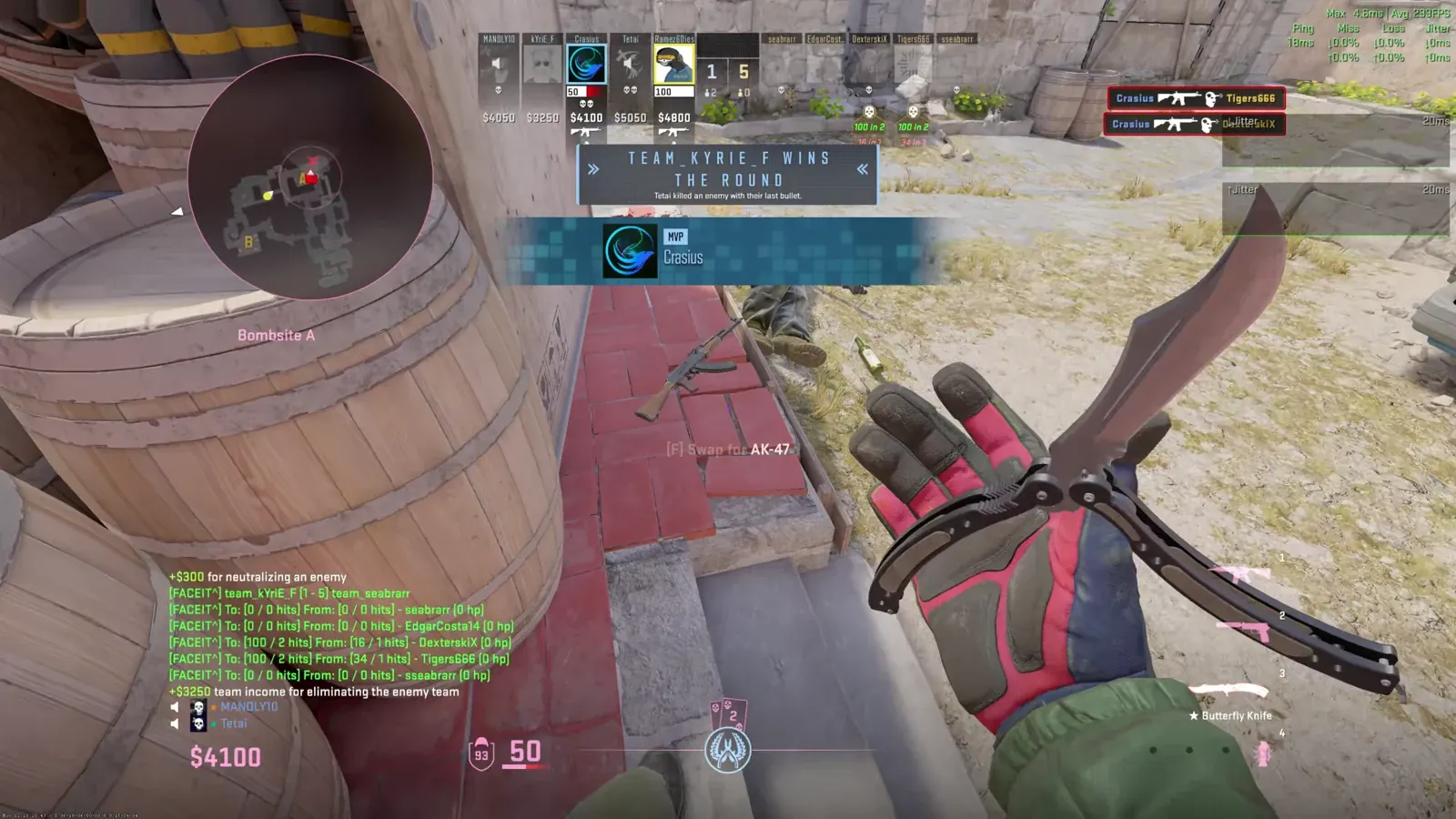
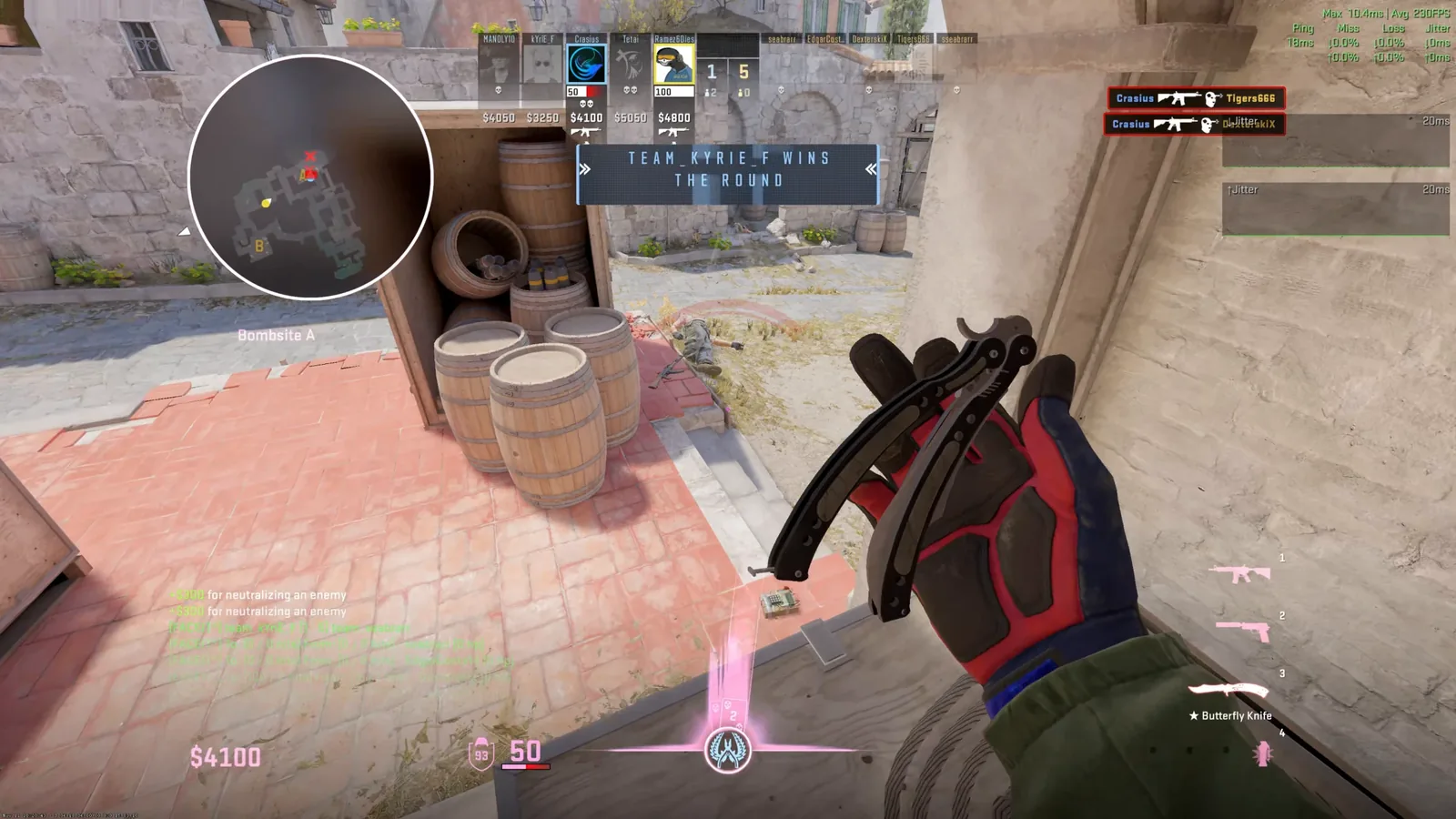
Counter-Strike 2 tells Rusty Clips the moment it happens.
In the footage.
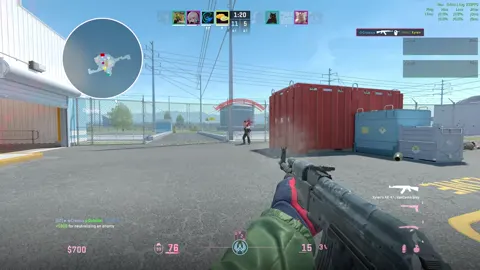
Four headshots in a row, saved as one clip named “4 headshots”.
What it clips.
Kills, multi-kills, assists and match wins.
How it knows.
Dota 2 tells Rusty Clips the moment it happens.
What it clips.
Kills, multi-kills, assists and match wins.
How it knows.
League of Legends tells Rusty Clips the moment it happens.
What it clips.
Kills, multi-kills, first bloods, assists, spike plants and defuses, and match wins.
How it knows.
Rusty Clips sees it on your screen.
What it clips.
Eliminations, multi-kills, assists and revives.
How it knows.
Rusty Clips sees it on your screen.
In the footage.
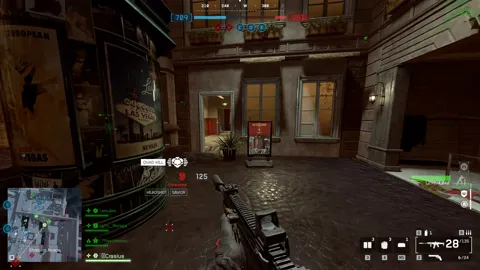
Two quick eliminations, the second one a headshot.
What it clips.
Kills, headshots, multi-kills and assists.
How it knows.
Rusty Clips sees it on your screen.
What it clips.
Kills, multi-kills and assists.
How it knows.
Rusty Clips sees it on your screen.
What it clips.
Eliminations, multi-kills and assists.
How it knows.
Rusty Clips sees it on your screen.
What it clips.
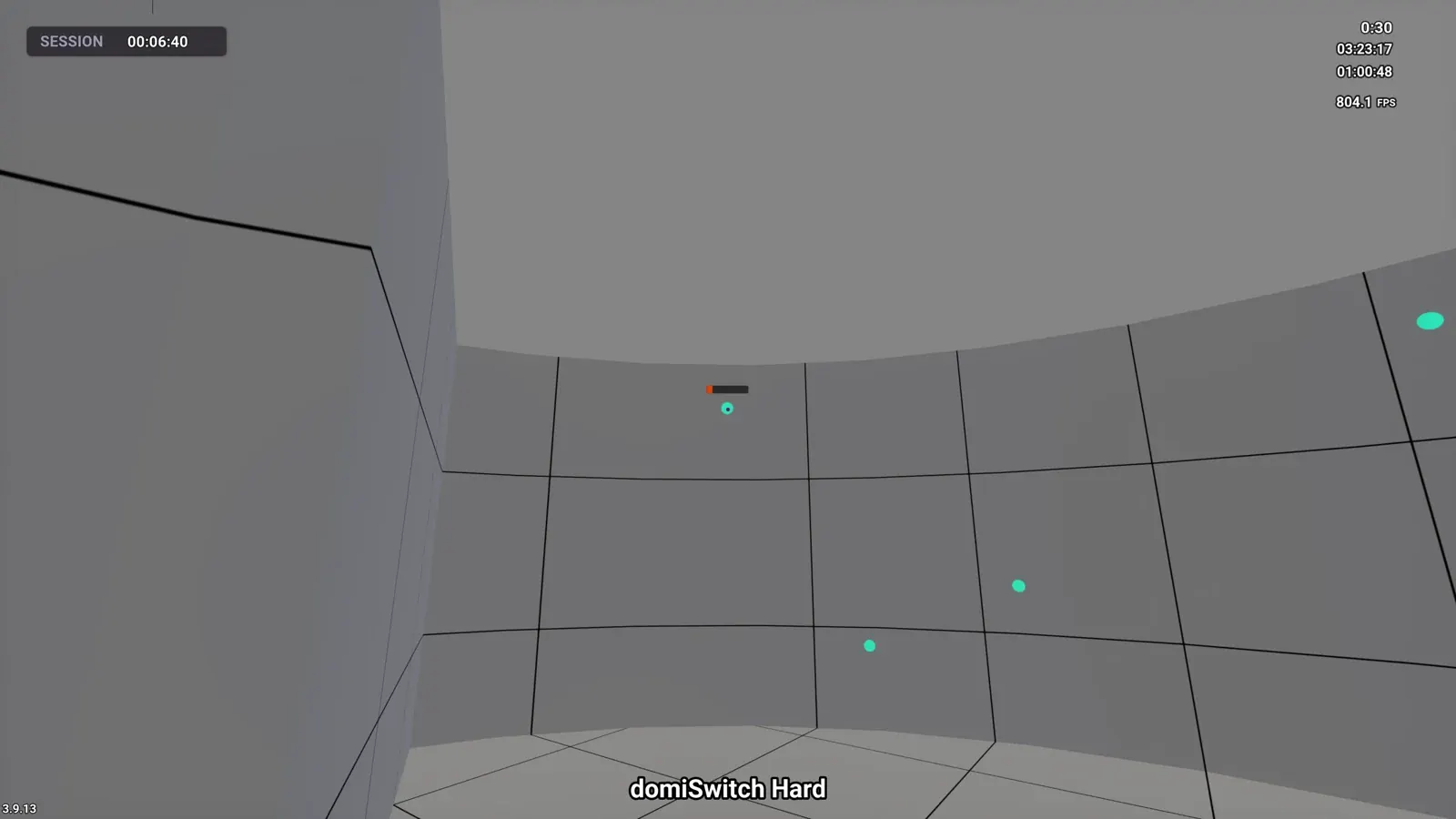
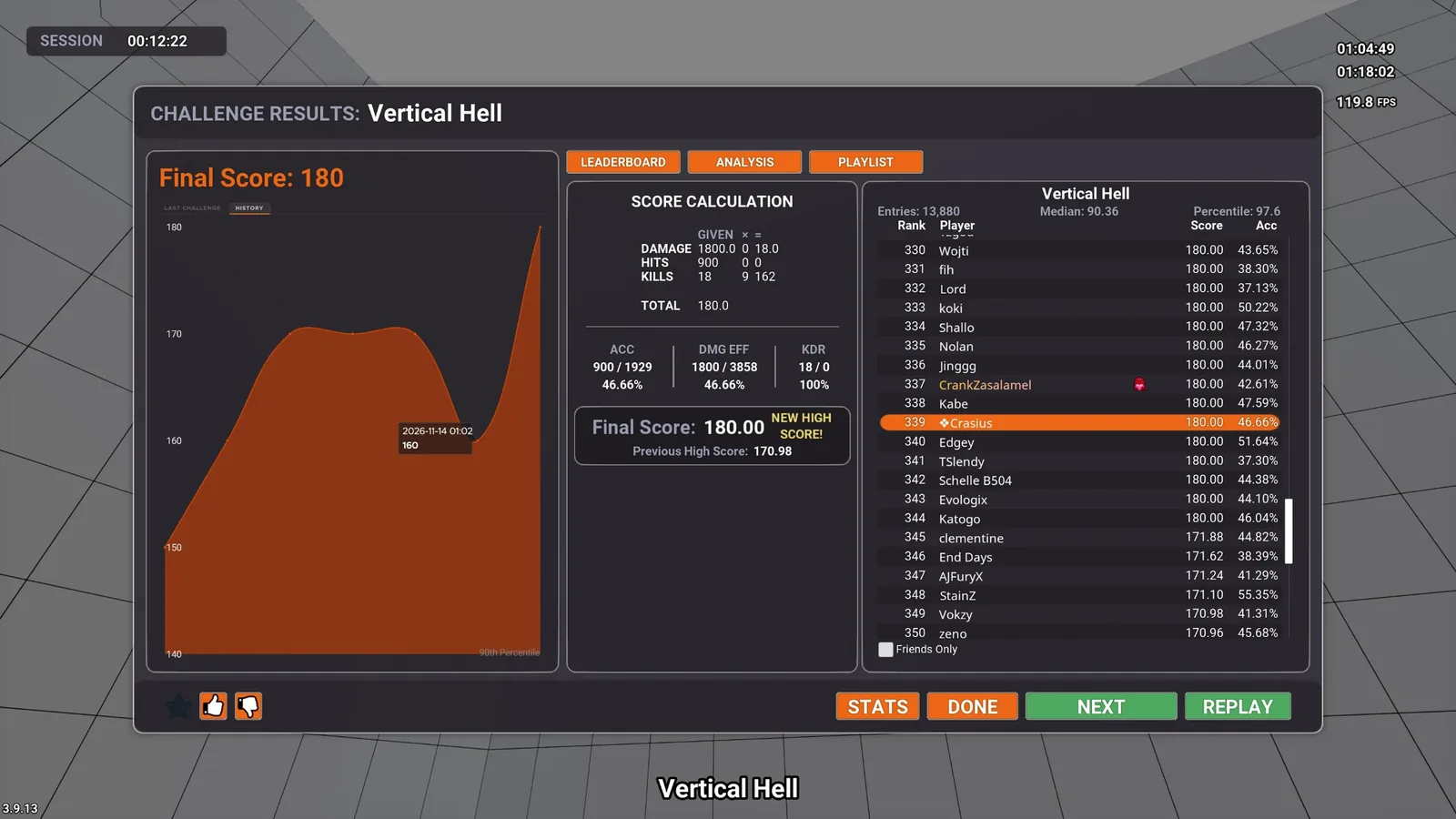
Every run that beats your best, named after the scenario and the score.
How it knows.
Rusty Clips knows the moment your run ends.
In the picture.
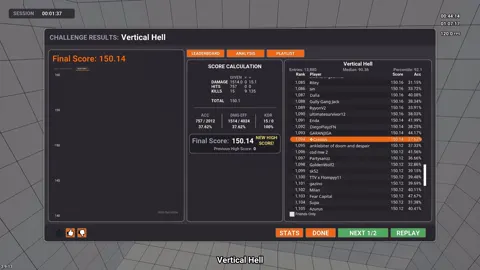
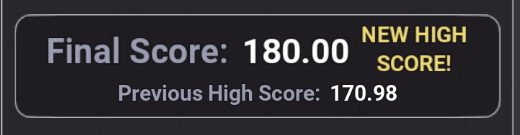
A new best on Vertical Hell, saved as “Vertical Hell - 180”.
What it clips.
Every run that beats your best, named after the task and the score.
How it knows.
Rusty Clips knows the moment your run ends.
Your choice. Pick the moments you want clipped in each game, and carry your choice over to the next game in one step.
Cut it to the frame. Send it where it goes.
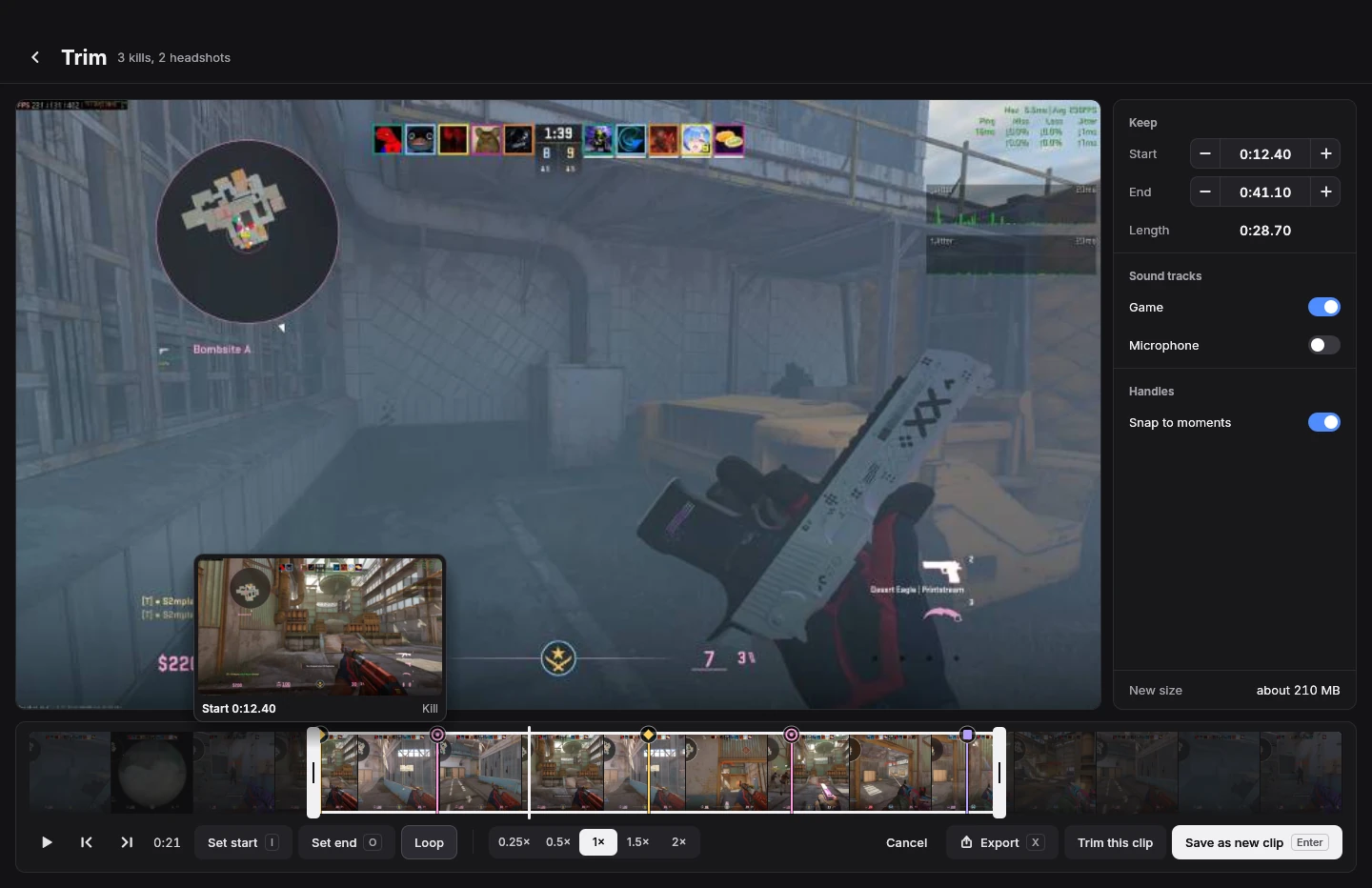
Trim keeps the part you choose exactly as it was recorded, every pixel. The handles snap to your kills, so the cut lands right on the moment.
Exact to the frame.
Step through the clip one frame at a time and cut exactly where you want.
A lossless cut.
The kept part is written as it was recorded, at full quality.
Snap to moments.
Drag a handle near a kill marker and it lands right on it.
Keep the original.
Save the cut as a new clip and the full fight stays too.
Ready for Discord.
One click, and the clip fits Discord and still looks clean.
Ready for YouTube.
Sharp and smooth for your channel.
Compact.
A small copy that is easy to keep and send.
Right where you are.
Export from your library, the Viewer or Trim, and the finished file opens in its folder.
Your library, sorted by the day you played.
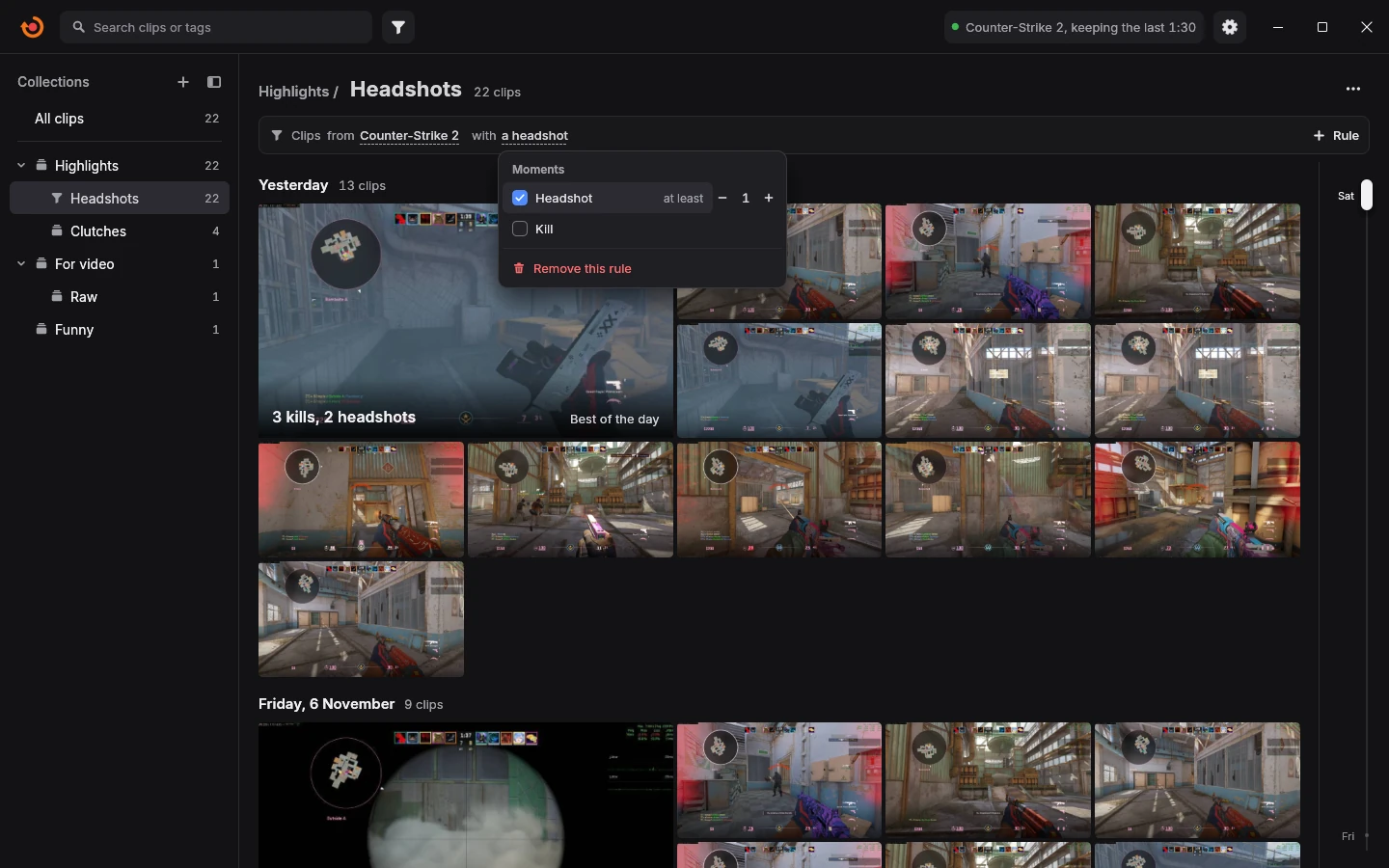
Every clip lands in your library, sorted by day, with the best clip of each day shown big. Search it, filter it, and save any filter as a collection that keeps filling itself while you play.
Clips fromwith
14 clips
Monday, 16 November 6 clips
8 kills, 2 headshotsBest of the dayBattlefield 6
5 killsBest of the dayBattlefield 6
4 headshotsBest of the dayCounter-Strike 2
2 headshots, round wonBest of the dayCounter-Strike 2
2 killsBest of the dayCounter-Strike 2
domiSwitch Hard - 4330Best of the dayKovaaK's
Saturday, 14 November 2 clips
Vertical Hell - 180Best of the dayKovaaK's
Vertical Hell - 150Best of the dayKovaaK's
Wednesday, 11 November 6 clips
6 killsBest of the dayTHE FINALS
6 kills, assistBest of the dayTHE FINALS
4 kills, reviveBest of the dayTHE FINALS
4 kills, 2 assistsBest of the dayTHE FINALS
3 headshotsBest of the dayCounter-Strike 2
2 kills, 2 assistsBest of the dayTHE FINALS
Nothing here yet. New clips that fit this rule land here by themselves.
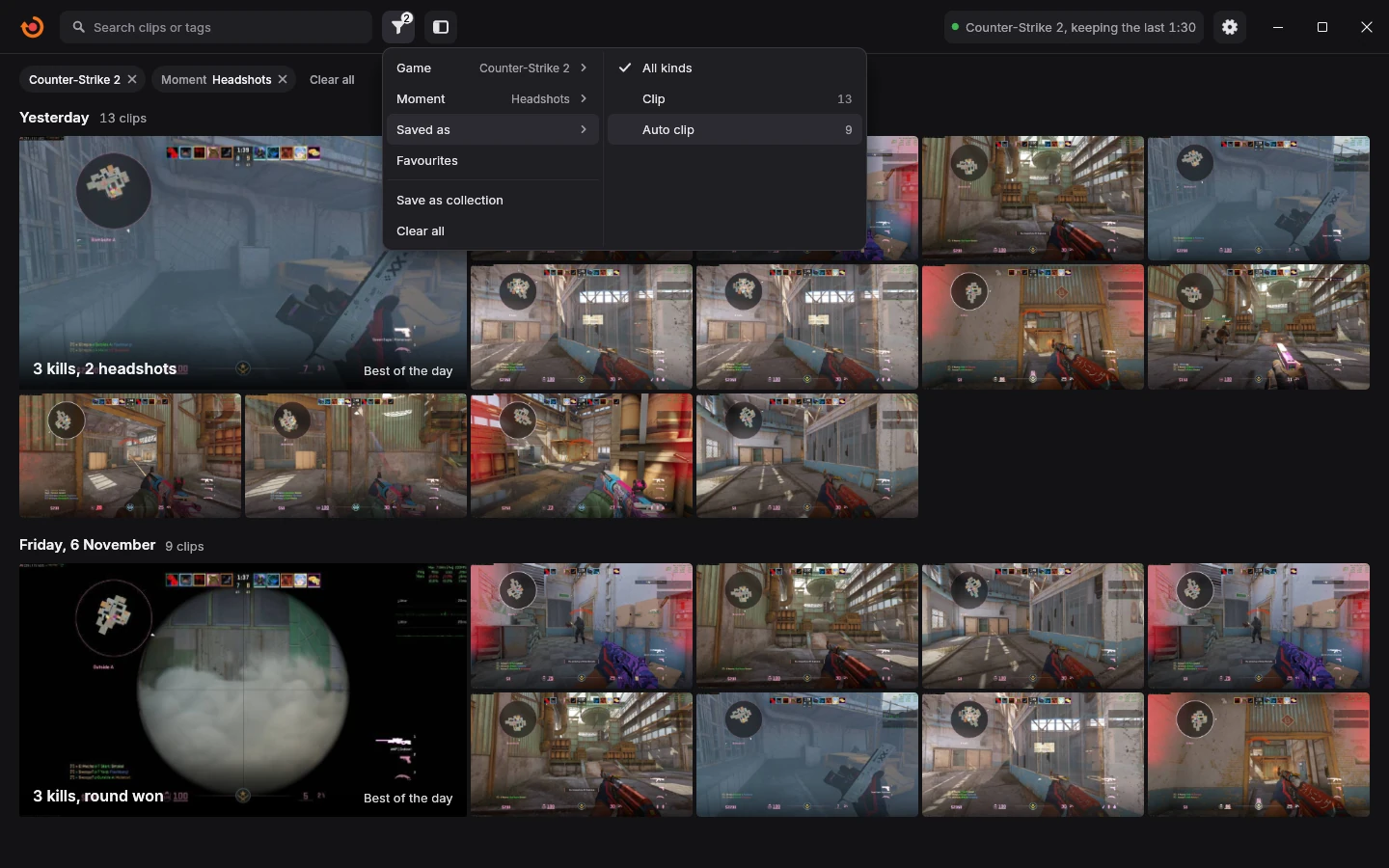
Try it. Pick a game and a moment, and the owner's real clips sort themselves as you choose. Save as collection keeps it, and every new clip that fits joins it by itself.
Best of the day. Each day's strongest clip leads its day, so one look tells you how the evening went.
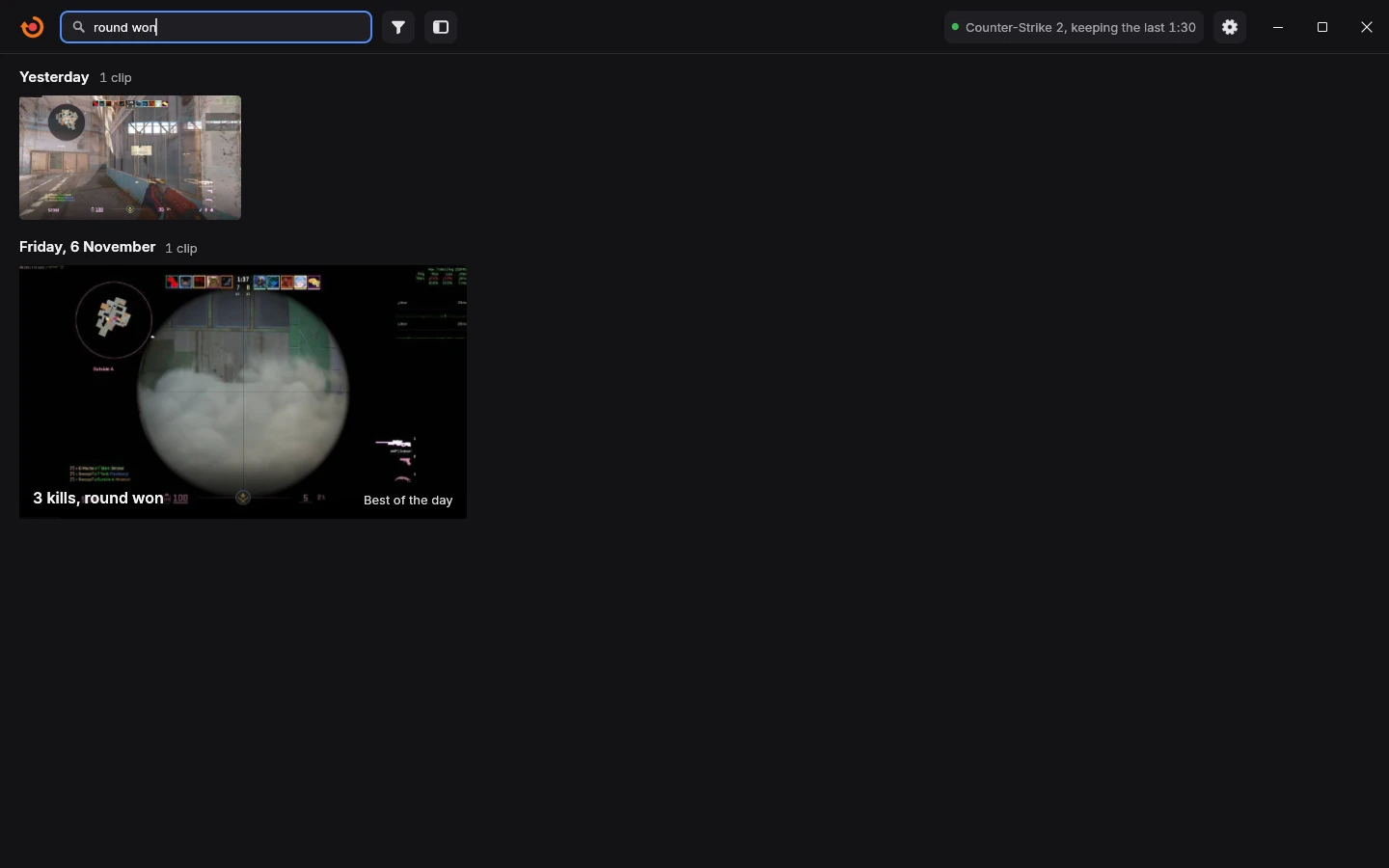
Find it in seconds. Type what happened, and only the clips that fit stay.
Filters for everything. Game, moments, auto clips or your own, favourites, date, length and tags.
Collections that fill themselves. Say what belongs in it, like “Clips from Counter-Strike 2 with a headshot”, and every new clip that fits lands there.
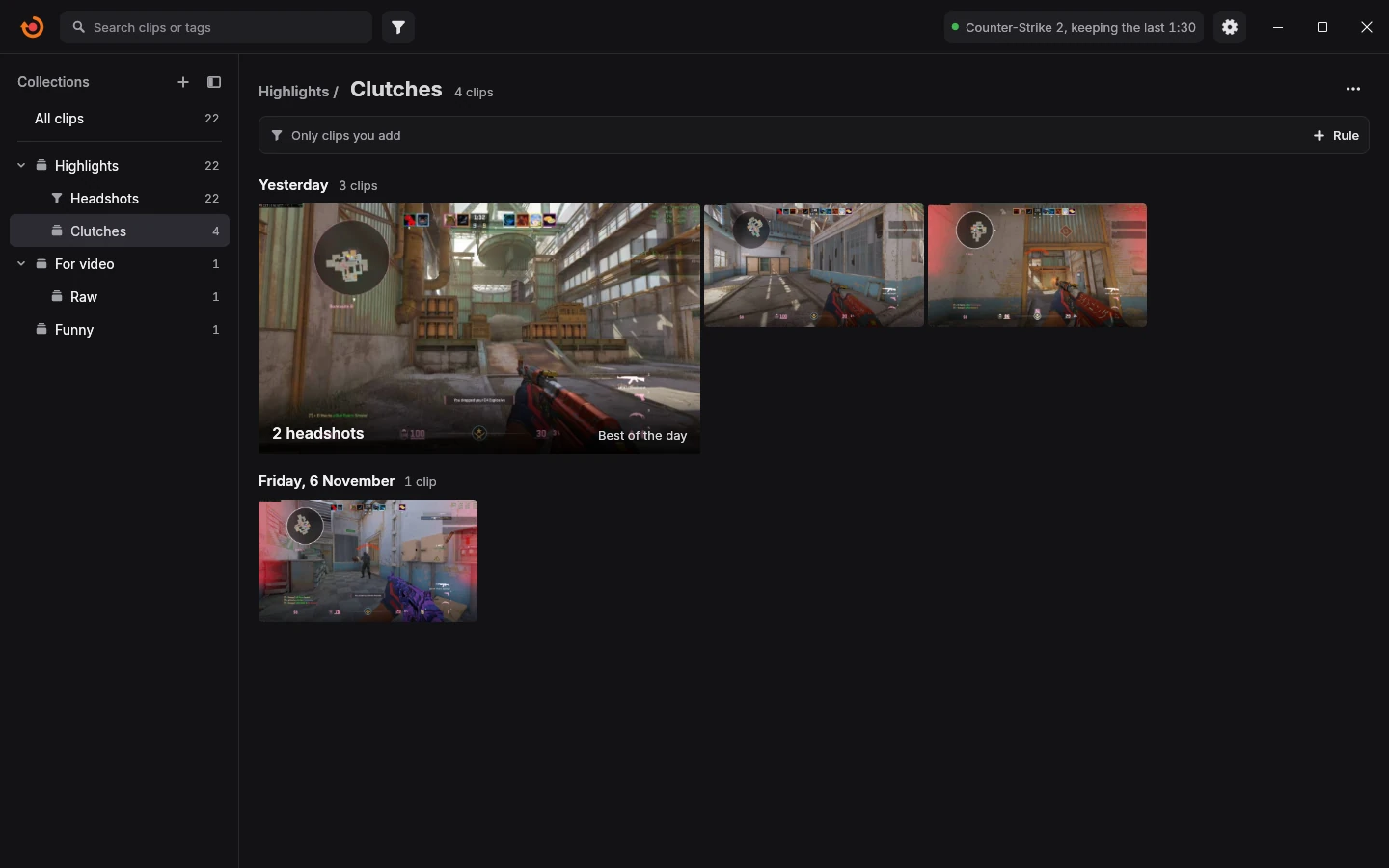
Your own folders. Collections inside collections, as deep as you like, filled with the clips you pick.
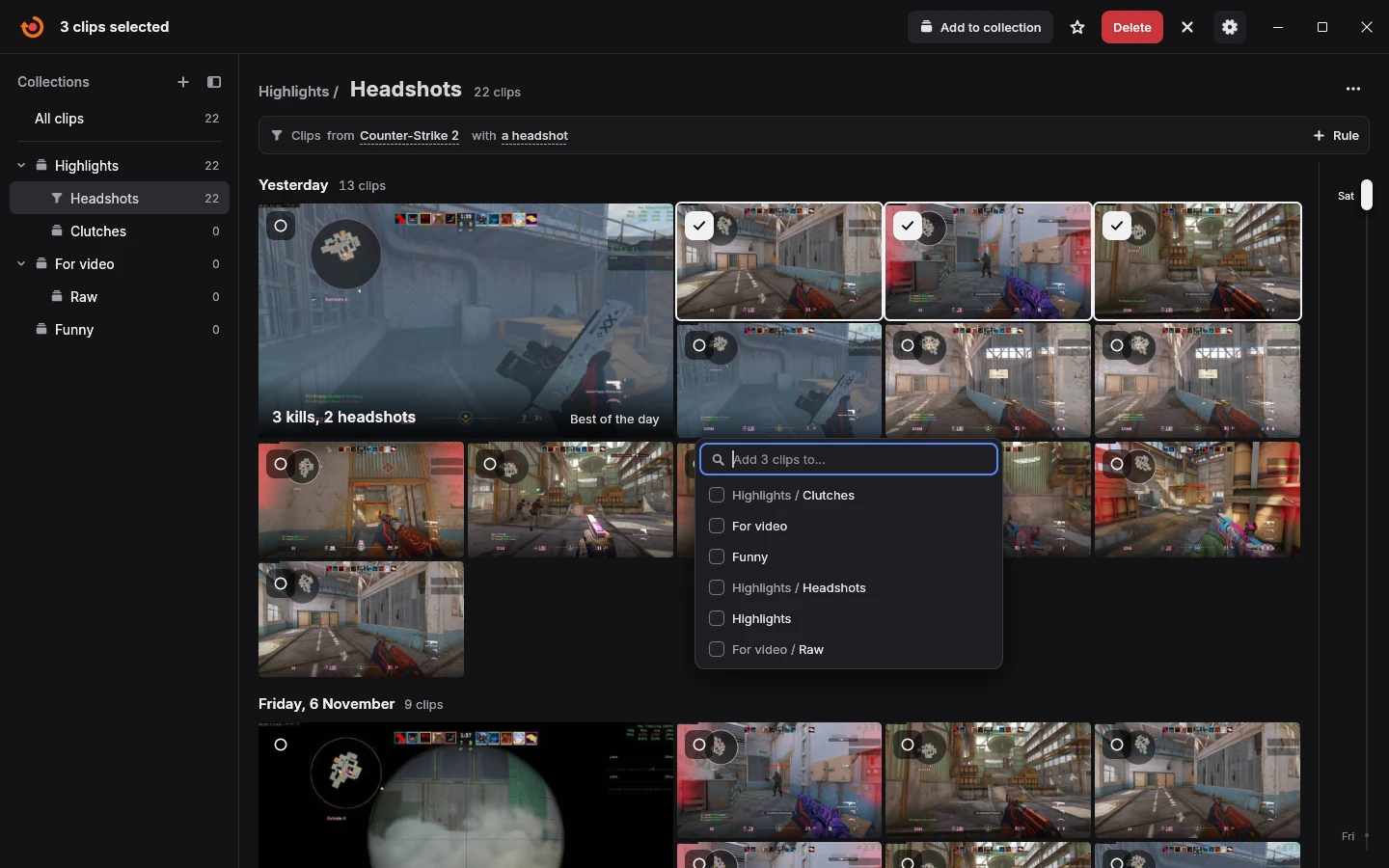
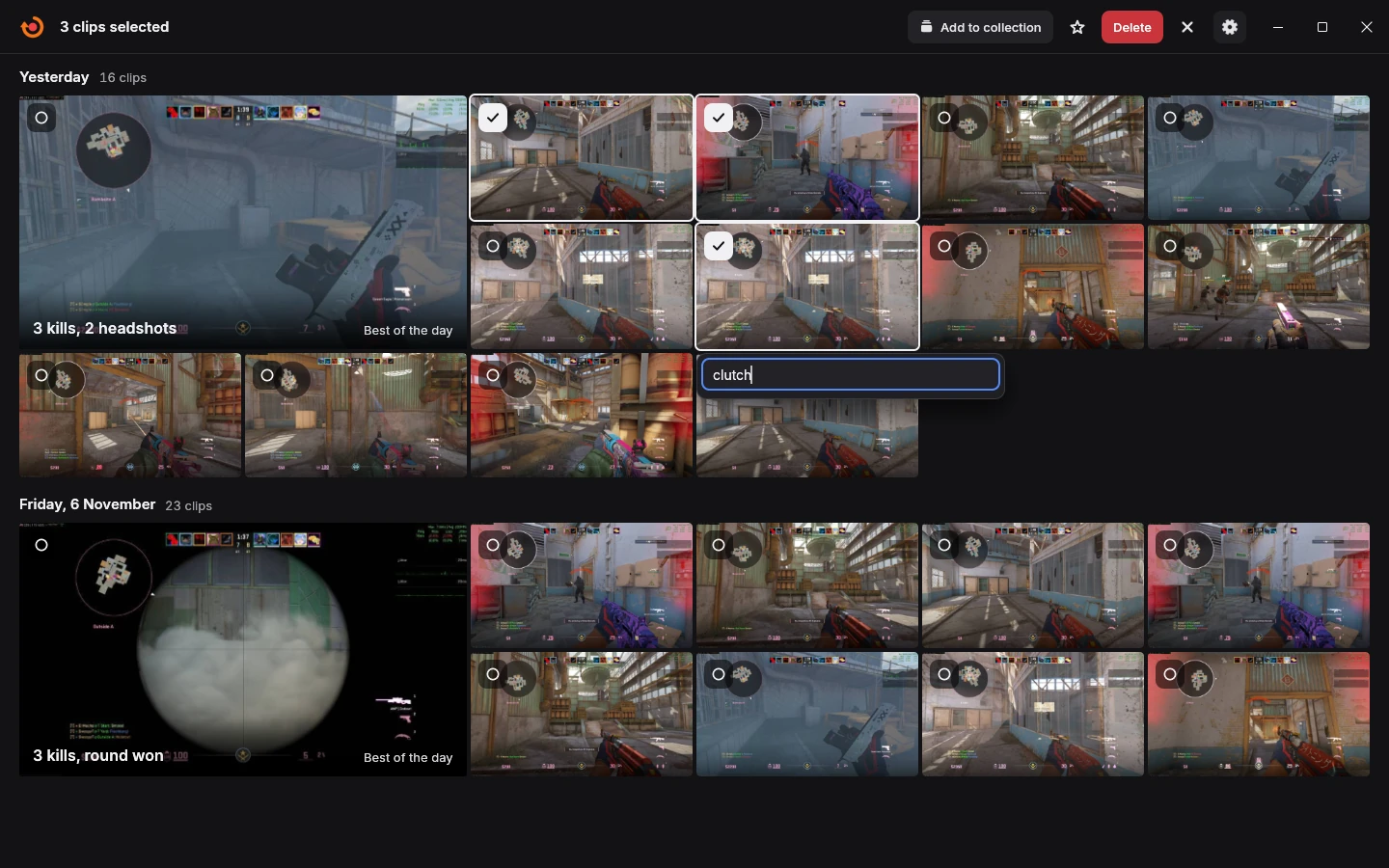
Quick add with C. Pick clips, press C, type a few letters and tick the collection.
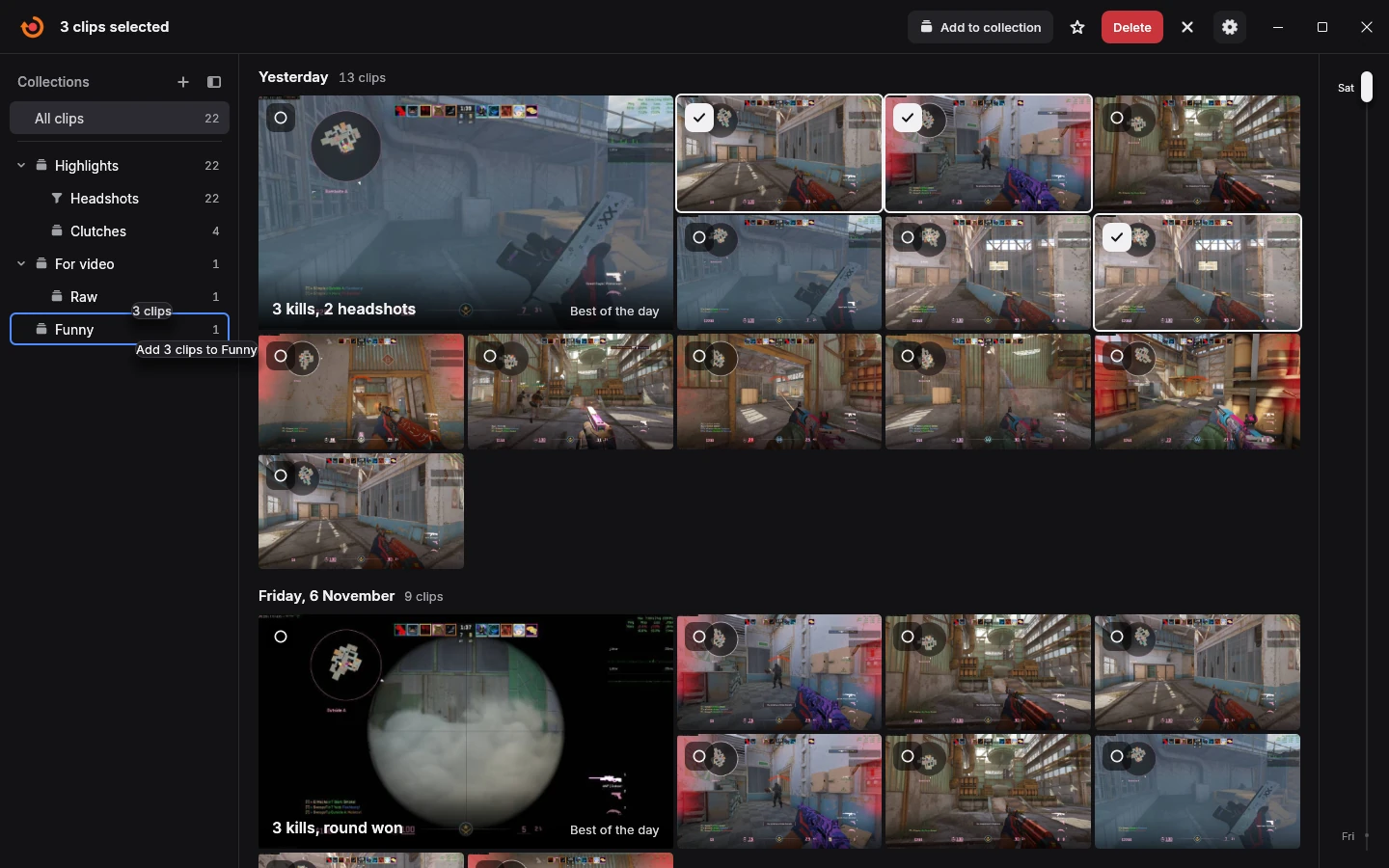
Drag and drop. Drop a few clips on a collection and they join it.
Many clips, one move. Tag, favourite, copy, export or delete a whole selection at once.
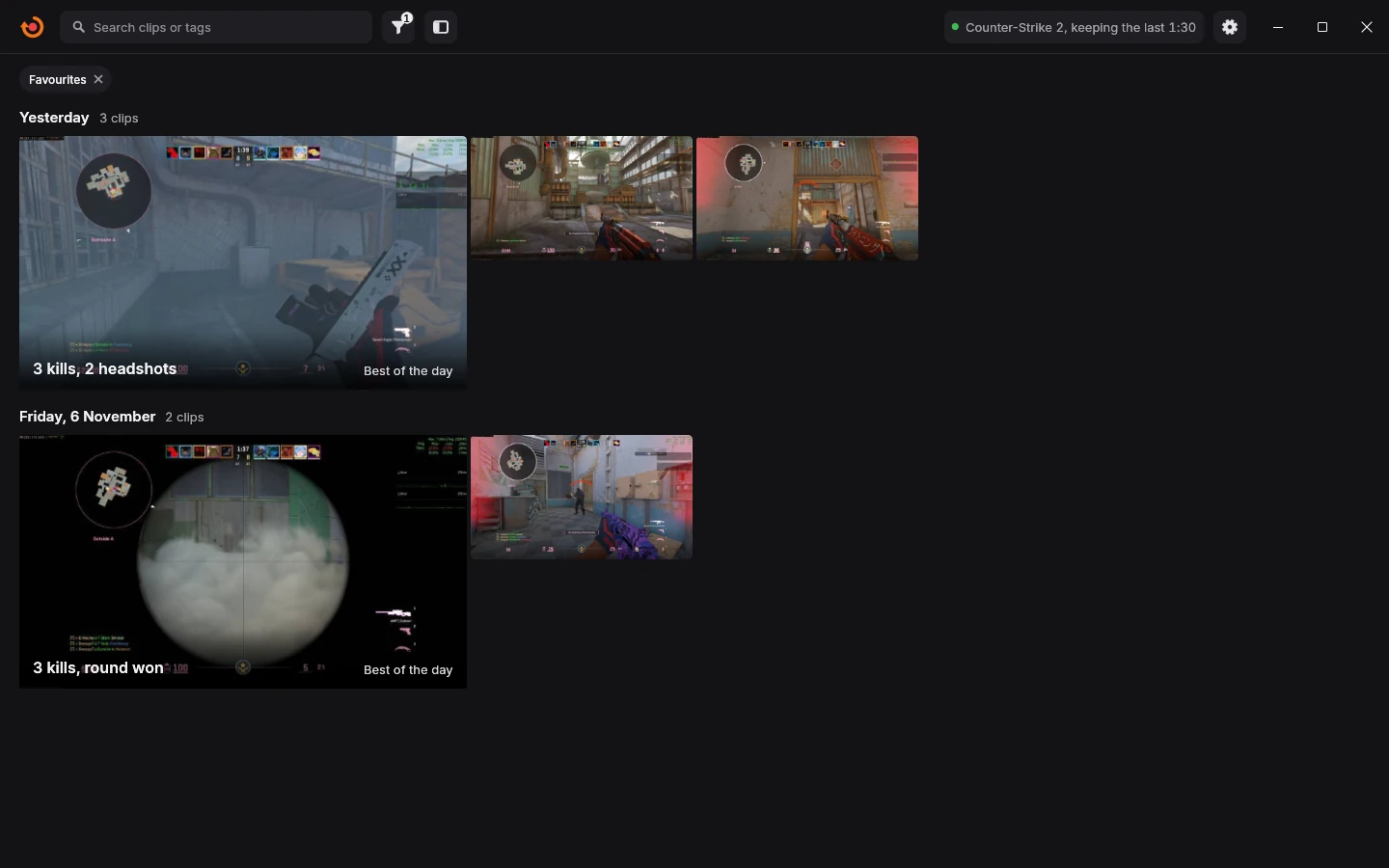
Your favourites. Star the keepers and see only them with one click.
Hover to watch. Rest the mouse on a clip and it plays its moments, kill by kill.
Search.
Find a clip by its game, what happened in it, its name or its tags.
Filters for everything.
Game, moments, auto clips or your own, favourites, date, length, name and tags.
Nested collections.
Folders inside folders, as deep as you like, and a clip can sit in as many as you want.
Quick add with C.
Add one clip or a whole selection to a collection in a moment.
Drag and drop.
Drop clips on a collection and they join it.
One menu for a selection.
Favourite, tag, copy, export or delete every picked clip at once.
Watch without losing your place.
A clip opens right over your library with its moments listed, and the arrows step to the next one.
Favourites, names and tags.
Star the keepers, rename a clip and give it your own short tags.
Space at a glance.
See which games take the most room, and let old clips clear out on their own.
Files you can take anywhere.
Open a clip's folder or copy the file and paste it wherever you like.
Old clips move to your own cloud or NAS.
Connect your own cloud storage or a folder on your NAS. Clips older than the age you pick move there by themselves, wait until your match is over, and stay in your library, ready to play. Your drive gets its space back.
Clips on this PC, ready to upload.
On this PC 14
14 of 14 videos kept on this PC
In your cloud 0
Uploaded clips show up here and keep their place in your library.
Try it. The owner's real clips. Move the age, start a match, and watch what goes up and when.
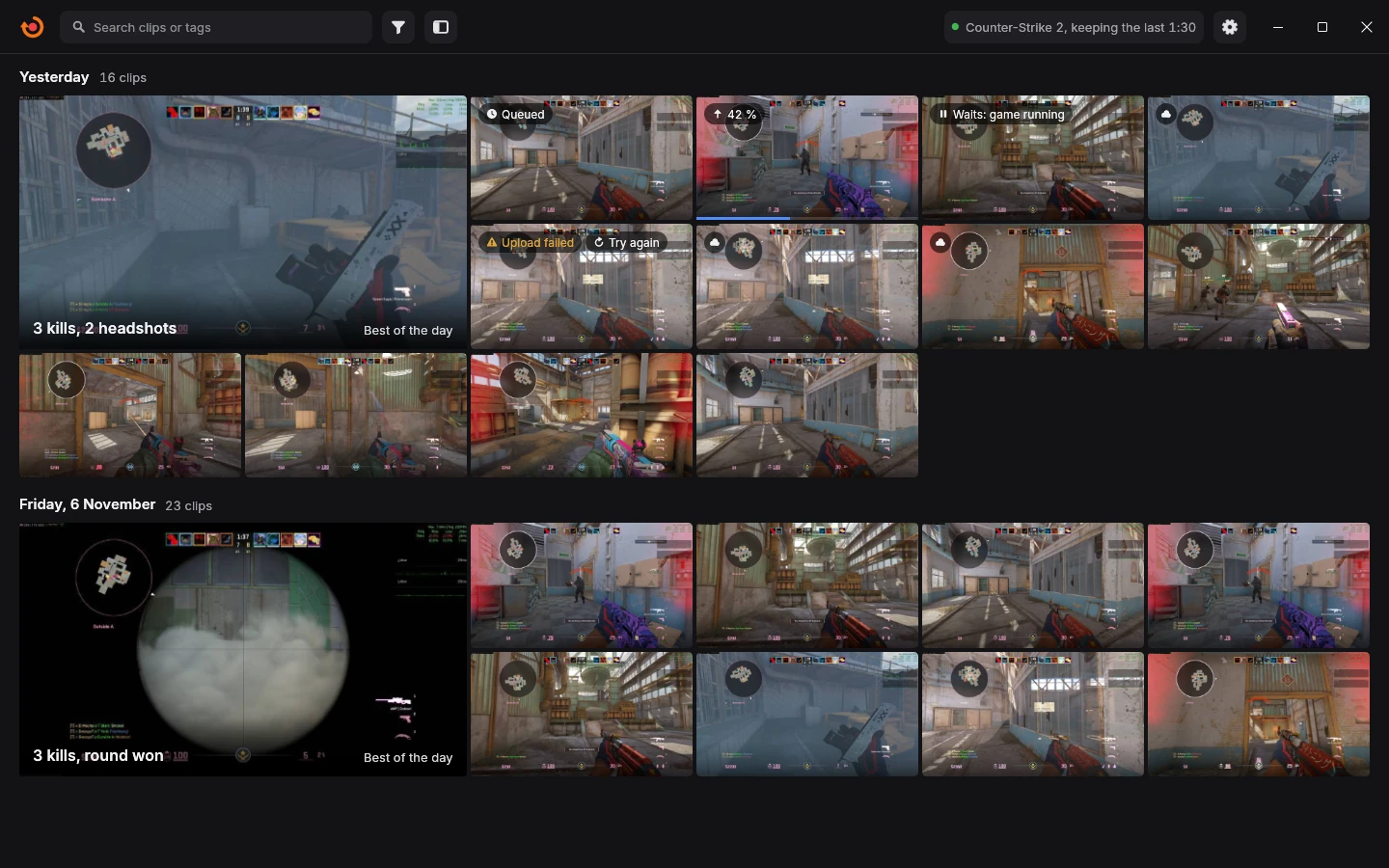
Every clip shows where it is. Uploading with its progress, waiting for your match, safe in the cloud, or Try again if it could not finish.
Bring it back. A clip that lives only in the cloud comes back to your PC with one click.
Your match comes first. While you play, uploads wait, and they carry on when the match is over.
When and what. Pick the age, the kinds of clips and the hours, and decide whether the PC keeps a copy.
Yours, and off until you switch it on.
Your clips go only to the storage you connect, with no account of ours.
Your cloud or your NAS.
Use cloud storage you rent yourself, or a shared folder on a NAS or another PC at home.
By age, on its own.
Pick days, weeks or months, and which kinds of clips move.
Out of your way.
Uploads run in the hours you pick, while your connection has room to spare, and wait for your match.
Progress on the clip.
Each clip shows its upload right in your library.
Picks up where it stopped.
An upload that breaks off carries on from there.
Checked before it counts.
A clip counts as moved once your storage holds the complete file.
Space back on your PC.
Keep a copy on the PC too, or let it go once the clip is safe.
Plays from there.
A clip in your cloud or on your NAS keeps its picture and preview, plays like any other, and even trims.
Bring it back.
One click puts a clip back on your PC, for one clip or a whole selection.
Upload now.
Send a clip right away from its menu whenever you like.
Try again.
If an upload cannot finish, the card says why and Try again picks it up.
Recorded the way you see it.
Your clips look the way the game looked, sharp and as smooth as you played it, while your game keeps running smoothly.
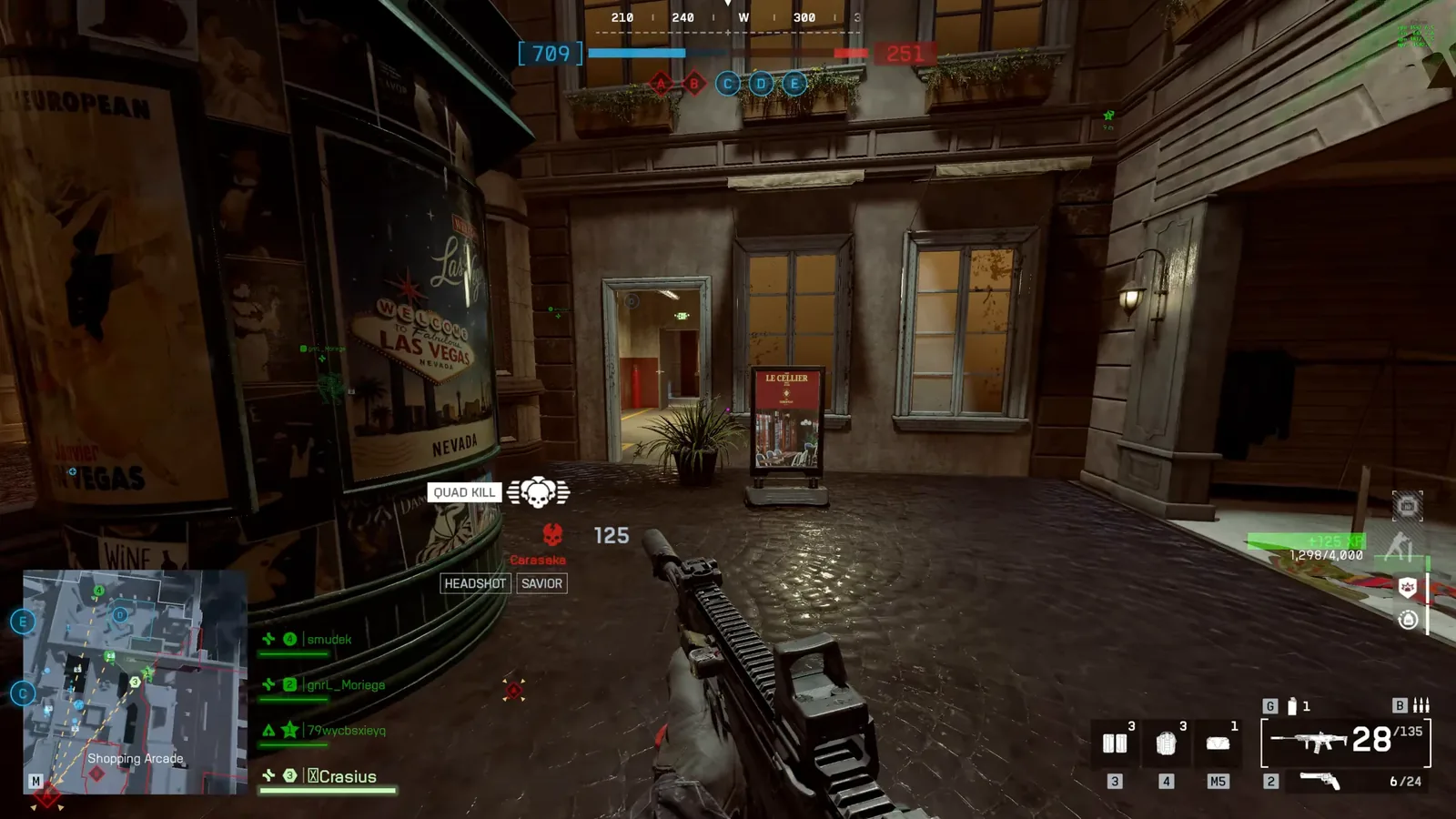
Every pixel
A piece of one frame from the owner's Battlefield 6 clip, shown at full size, exactly as it was recorded.
As smooth as you play.
Fast games stay fluid in every clip.
As sharp as your screen.
Clips keep the size you play at, or a smaller one if you prefer.
HDR stays HDR.
When your game plays in HDR, your clip keeps its colour and light.
Your game stays smooth.
Rusty Clips keeps its work light, so your game keeps the speed it needs.
Separate sound tracks. Game, other apps and your microphone each on their own track, so you can mute one later.
Quick settings. The ones you change most, one click from your library.It waits in the tray. It starts with the game and answers with a short sound when you save.
It stays outside your game.
Rusty Clips watches the way you do, through what Windows shows and plays. Your clips are files on your PC, and they stay there.
What it reads
The picture, the way Windows shows it.
The sound, the way Windows plays it.
What a game shares about your match itself.
What it leaves alone
It stays outside the game, safe with anti-cheat.
It never draws over the game. When you save, you hear a short sound.
It runs without an account and keeps your clips to yourself.
The game as you see it. This is what it records: the game exactly as it appears on your screen.
Supported games.
Ten games clip themselves, each with its own page in Settings. Every other game records too, and F8 saves the moment.
Games that clip themselves and the moments each can clip
Game
Moments it can clip
Counter-Strike 2
kills, headshots, one-taps, multi-kills, aces, round wins, match wins
Dota 2
kills, multi-kills, assists, match wins
League of Legends
kills, multi-kills, assists, match wins
VALORANT
kills, multi-kills, first bloods, assists, spike plants and defuses, match wins
THE FINALS
eliminations, multi-kills, assists, revives
Battlefield 6
kills, headshots, multi-kills, assists
Deadlock
kills, multi-kills, assists
Overwatch
eliminations, multi-kills, assists
KovaaK's
every new highscore
Aim Lab
every new highscore
You choose which moments become clips in each game.
One page per game. Its own auto clips, its own recording settings, its own sound.
Questions.
Runs on Windows 10 or 11.
Does it slow my game?
Rusty Clips is built so your game keeps its speed. It records quietly next to your game and stays out of its way.
Does it touch the game?
It sees and hears your game the way Windows shows and plays it, and stays outside the game, safe with anti-cheat.
Where are my clips?
On your PC, in your Videos folder, as ordinary video files you can copy anywhere. Old ones can move to your own cloud or NAS.
Do I need an account?
You install it and play. Rusty Clips works without any account.
Which games clip by themselves?
Counter-Strike 2, Dota 2, League of Legends, VALORANT, THE FINALS, Battlefield 6, Deadlock, Overwatch, KovaaK's and Aim Lab. Every other game records too, and F8 saves the moment.
Can I clip by hand?
Press F8 and the last moments are saved as a clip. You can pick your own key.
Get Rusty Clips.
For Windows 10 or 11.
Setup
Installs in a minute and lets you pick the extras you want.


 Battlefield 6
 THE FINALS
 Counter-Strike 2
 KovaaK's